

Project setup guidance
How Cintesa shows one next action — the Next step card, the green dot, and why later dashboard pages stay locked.
Last updated on
Until the five-step workflow is complete, the dashboard shows one next action. It does not list every remaining field at once.
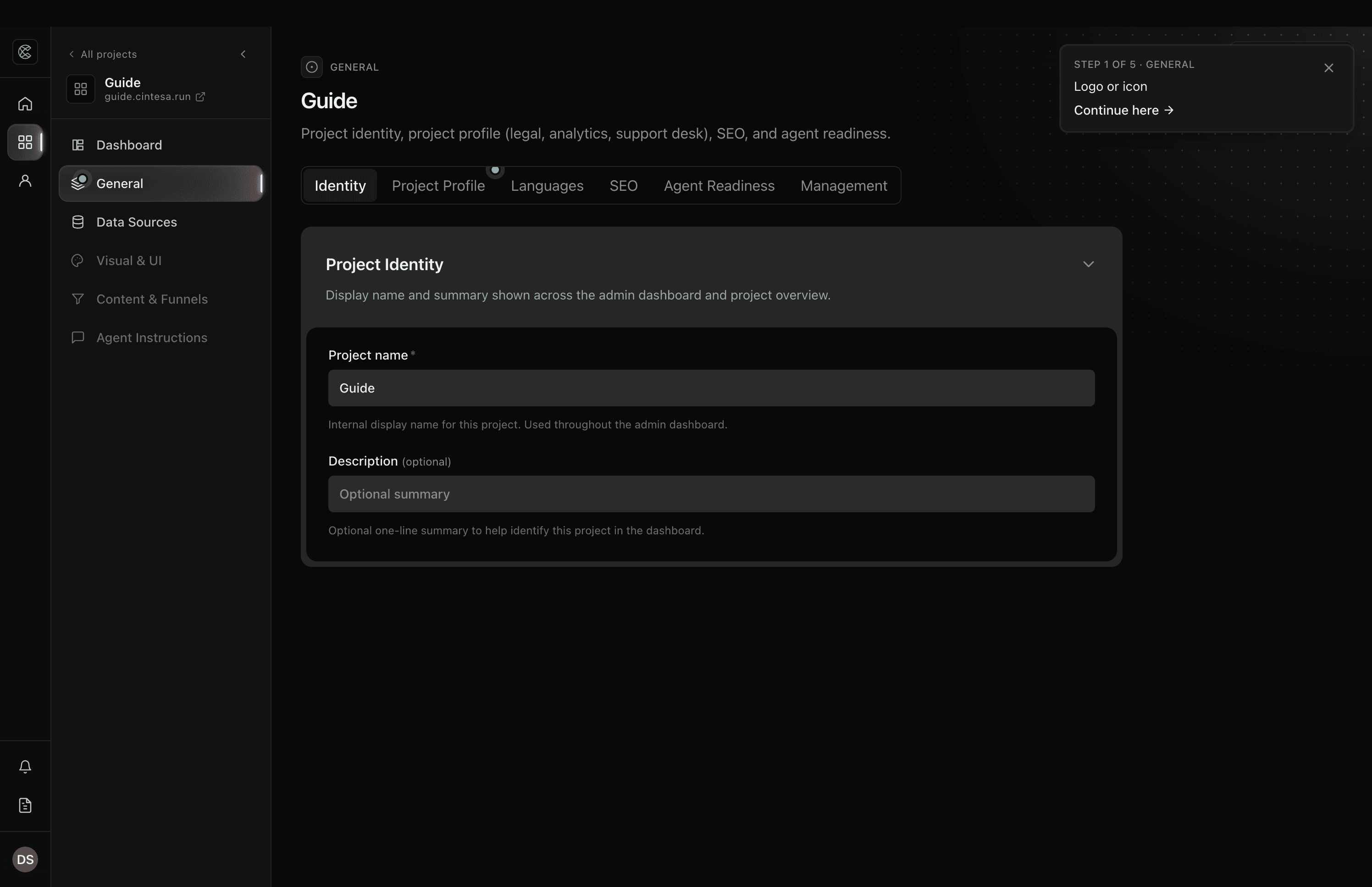
The shot above is an unfinished project. The Next step card sits in the upper-right. A green dot marks the tab or control to use next.
What the system is doing
Cintesa treats setup as five steps, in order: General → Data Sources → Visual & UI → Content & Funnels → Agent Instructions.
On every project page, the dashboard looks at what is still missing on the first incomplete step and highlights that only. When you finish that item (and save where a save is required), the highlight moves to the next missing item. When all five steps are done, the card and green dots go away.
You will see the same next action in three places:
| Where | What you see |
|---|---|
| Next step card (upper-right) | Short title, the missing item, and a link |
| Green dot | Sidebar item, tab, or field for that item |
| Next step badge | On the highlighted settings panel |
The Projects list can also show a Next step column so you can resume from the organization view.
The Next step card
The card is fixed in the upper-right of the project workspace.
- The title looks like Step 1 of 5 · General (the number and label change as you progress).
- The body is the first missing item — for example “Logo or icon”, or “Save General settings”.
- Continue here means you are already on the right page. The page scrolls so the Next step frame is in view. Go to General (or Data Sources, Visual & UI, and so on) opens the step you still need, then scrolls to that frame.
- X hides the card for this page view. Refresh or move to another step and it comes back until setup is complete.
Click the link. Do not hunt the rest of the sidebar until that item is done.
The green dot
The green dot is the same next action as the card, placed on the control you should touch.
- On the sidebar, it marks the next workflow page.
- On tabs (Identity, Project Profile, Sections, Funnels), it marks the tab that holds the missing item.
- On a field or button, a green pulse or ring marks the control (logo upload, Save, Add a site, and similar).
A highlighted panel can also show a small Next step badge on its edge.
The dot is decorative. The card and the field label are what you should read.
Why later pages stay locked
The dashboard opens steps in order so later work can use what you already saved.
- General and Data Sources stay open. You can name the project and add a source from the start.
- Visual & UI, Content & Funnels, and Agent Instructions stay locked until every earlier step is complete. Opening a locked page shows Complete prior steps first, lists what is still missing, and offers Continue Step N.
- Integrations and Delivery stay locked until all five steps are complete. Those pages show Finish project setup to unlock launch tools.
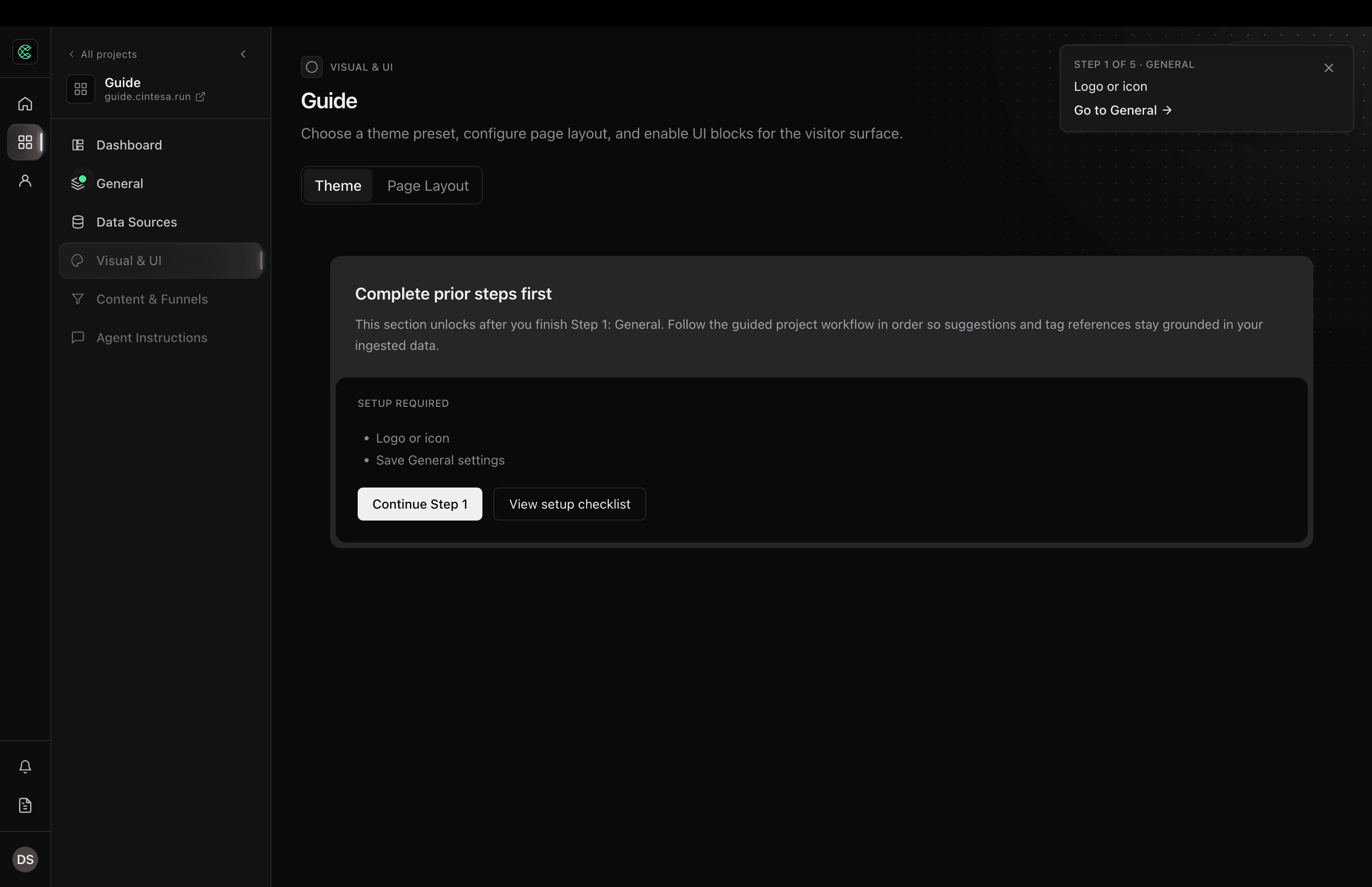
That is intentional. Content sections and Funnels attach to Sources you already ingested. Agent Instructions should be written against that content. Launch tools (CRM, embed, custom domain) wait until the site and the agent are actually set up.
Billing to go live is separate. A Complete billing to go live banner can appear even while you work through the five steps — see Plans.
What to do
- Read the Next step card.
- Follow the green dot (tab or field).
- Save when the step requires a save (General, Visual, Content & Funnels, Agent Instructions).
- If you landed on a locked page, use Continue Step N instead of trying to skip ahead.
When the five steps are done, a Setup complete card replaces the next-step tip. It congratulates you and suggests what to do next: open the project dashboard, connect Integrations, and set up Delivery. The card appears once per person per project. Dismissing it, or seeing it once, keeps it from coming back in another browser. The green dots go away. Use Project management to go live, hold the site under construction, or turn conversations off.
© 2026 Cintesa. Guide text and screenshots are Cintesa product materials for personal and operator use. Do not scrape or republish them commercially without permission. Terms of Service · Privacy Policy.