

Data Sources
Ingest a website or files in Cintesa Data Sources so the agent can answer from your content.
Last updated on
Open Data Sources (sometimes labeled Sources). This is workflow step 2.
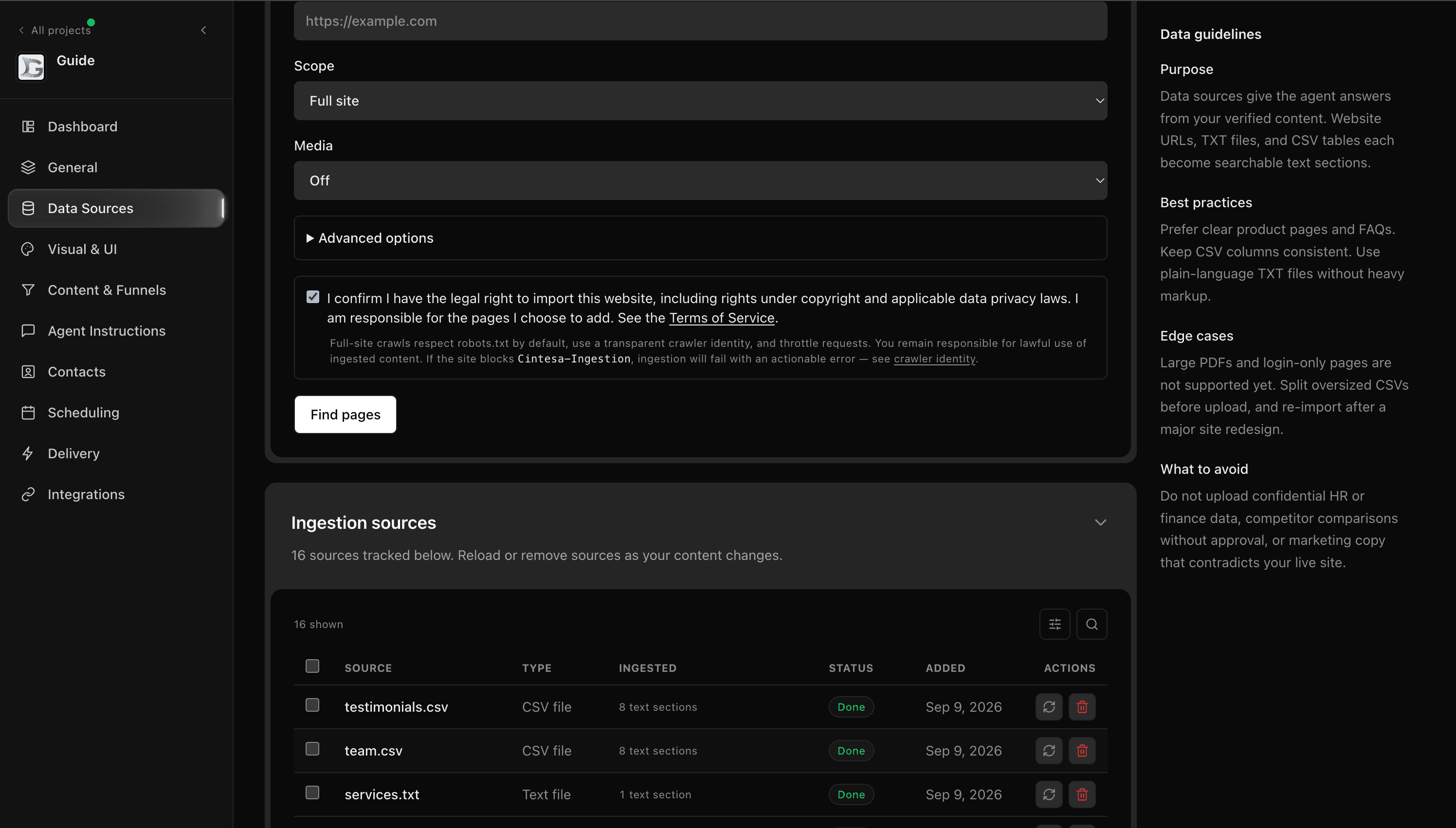
Add a source
- Add the website URL you want ingested, or upload allowed files.
- For a full site, choose Find pages. Review the list, uncheck pages you do not want, then choose Ingest selected pages.
- Wait until the source is done or shows pages.
- Use Data Map to see what was stored. Remove a source if you no longer want it — cleanup is automatic.
One finished source completes the workflow step.
If no sitemap is found, or you turn off Use sitemap.xml when available, you can crawl linked pages from the same form instead.
Follow ingestion progress
A full-site import shows the pages you selected as soon as you choose Ingest selected pages. Progress stays at the top end of the screen, above the page, and starting an import does not scroll the page. You do not need to reload the page. The percentage matches pages that have finished. It stays under 100% while pages are still importing. When the import finishes, the progress leaves and the source list updates. Each address includes the site name. While a page is importing, its name glows. A finished page shows a check. A skipped page shows Skipped. A page that did not import shows an X and what went wrong. During an import, pages stay in the order they were started. The list scrolls inside the progress panel. When the next page starts, that row comes into view in the list. The Data Sources page itself does not jump. If finding pages or the import cannot start, the message names the cause, such as a refused connection or a site that did not respond.
The same image on more than one page is stored once. Later pages use that stored image. Billing storage counts that file once.
A single page or file shows 0% while that import runs. When every selected item has finished, the progress says Import complete and the bar reaches 100%. The source list updates. If an import fails or is cancelled, the message and the last percentage stay on screen until you dismiss them.
What the agent uses
Published Agent Instructions decide how to answer. Ingested pages and files are the content those answers can draw from. You do not configure retrieval math here.
Who can the agent use content for
When you add a website or upload a file, choose who the agent can use that content for before the import starts:
- Visitors — the agent can use it in visitor answers.
- Team only — kept for your team. Not used in visitor answers.
- Restricted — stored only. Not used by the agent anywhere.
The choice applies to the whole source. In Data Map, select a page to give it a different setting from its website, or choose Same as source to remove that override.
Sources you added before this setting existed are available to visitors and show Review visibility in the table and in Data Map. Pick a value, or choose Confirm to keep the current one. Only an Owner or Admin can change visibility. The change takes effect right away and does not re-import the content. Re-importing a source or a page keeps the visibility you set.
Media library
Media library lists files you uploaded and images collected from ingested pages.
Above the list, Assistant tag list shows how many characters your uploaded tags use, out of 3,000. The assistant receives those uploaded tags. Scraped page images stay in the library for your pages and instructions, and they are not part of this list. A video file counts a few extra characters because the assistant list marks that tag as video. When the list is longer than 3,000 characters, the extra uploaded tags are not sent to the assistant. The tags left out are the last ones in A–Z order. If the visitor’s message names one of those tags, that tag is still available for that reply. Shorten a tag, or remove a file, to bring the list back within the limit.
Select one or more rows. Delete selected and Clear selection stay at the top of the screen while you scroll the list.
In the table, each preview is large enough to recognize the image. Hover the preview and choose the eye icon, or click the preview, to open it.
To change a tag, hover the row and choose the edit icon beside the tag, or click the tag. Choose the checkmark to save, or X to leave the tag unchanged.
After the first ingest
Reload a source when the public site, a policy, a price, or a service changes. Select one or more rows and choose Re-ingest. The prompt says the current content will be replaced. When the selection includes a TXT or CSV, choose those files in the prompt, then choose Re-ingest. From Data Map, re-ingest one page, or replace a TXT or CSV file on that source. In that file dialog, Browse is the main button until you choose a file. After you choose one, Upload & re-ingest is the main button.
When you upload documents, Replace files that already exist starts unchecked. Check it to replace a TXT or CSV whose name is already in this project. Leave it unchecked to add a new source.
The table includes Updated. A source changed in the last day shows a dot beside its name.
When the source is done, later visitor answers can use the updated material. You do not publish Agent Instructions again only to refresh a fact that lives in Sources. You remain responsible for making the update. Plan limits may cap how many pages you can keep — see Limits.
© 2026 Cintesa. Guide text and screenshots are Cintesa product materials for personal and operator use. Do not scrape or republish them commercially without permission. Terms of Service · Privacy Policy.