

Atmosphere
Set the Cintesa landing hero background — surface style, then optional custom media or a dimensional scene.
Last updated on
Configure first-viewport background appearance on the landing hero → Atmosphere, not on Visual & UI → Theme.
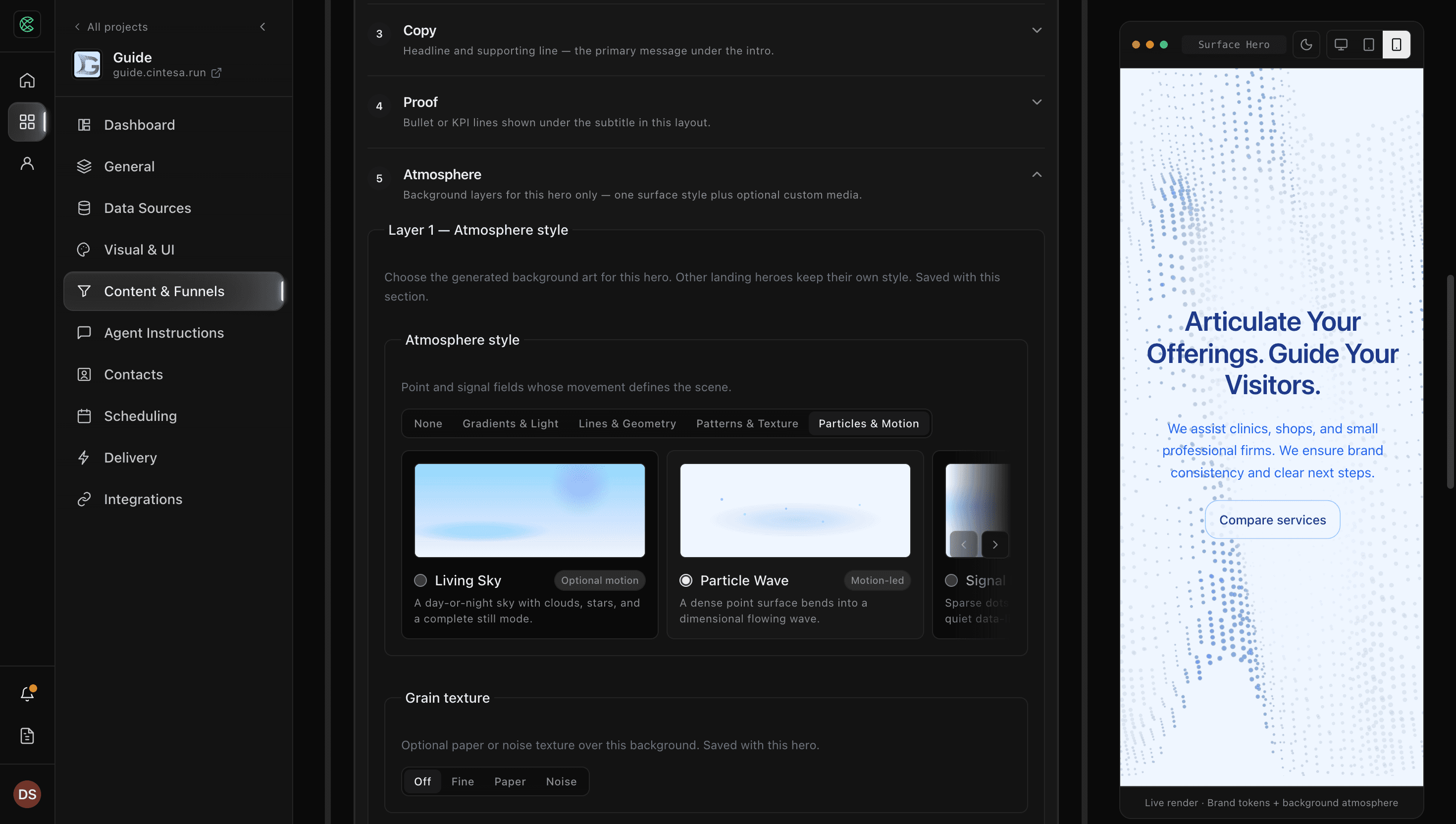
Open Content & Funnels → Content sections, edit the landing hero, then expand the Hero (classic) block and scroll to Atmosphere. If you see Complete prior steps first, finish General first — project setup guidance explains the lock.
Layer 1 — Surface style
Pick an outcome family:
- None
- Gradients & Light
- Lines & Geometry
- Patterns & Texture
- Particles & Motion — includes Living Sky (the day-or-night sky used on existing projects), plus Particle Wave, Signal Field, and the other motion-led styles.
Optional grain and color extras apply to any style, including Living Sky. On Living Sky, grain sits over the sky so the texture stays visible, and color tints the stars instead of washing the whole sky. Theme colors still drive the look.
Layer 2 — Custom media
Optional project image, MP4/WebM (a still poster is required), or a dimensional scene. Layer 2 stays on when Layer 1 is None.
Media size is Unset, Cover, or Contain. Cover fills the hero. Contain shows the full media. Choosing either one keeps the section editor open so you can keep editing.
Desktop and mobile each have their own file, size, and position. The media covers the whole hero, on a computer and on a phone, so a position such as Top places it at the top of the hero. The section preview shows the file, size, and position for the device you picked, including as soon as that preview is on screen and when you switch devices.
Desktop and mobile each have a Light theme source and a Dark theme source. Switch between those sources to set one or both. When both are set, visitors see the file for the theme they are viewing. When only one is set, visitors see that file in light and dark. When neither is set, that device stays empty. Fit, position, and the wash stay the same for both themes. The hero keeps its size.
Add media → Dimensional scenes
Bind a platform dimensional scene into an existing media slot (hero frames, composition roles, or Layer 2). This is a media source, not an Atmosphere family.
Saved older styles keep rendering. New selection hides those legacy cards unless the current hero already uses one.
Landing hero composition is chosen in the Landing Hero studio — pick a hero block from the UI blocks library, or use Change layout to switch an existing hero without starting over. Atmosphere sits on that hero, not as its own nav item.
© 2026 Cintesa. Guide text and screenshots are Cintesa product materials for personal and operator use. Do not scrape or republish them commercially without permission. Terms of Service · Privacy Policy.