

Content & Funnels
Create Cintesa content sections, review suggestions, generate copy, assign sections on a Funnel, then save.
Last updated on
Open Content & Funnels. This is workflow step 4.
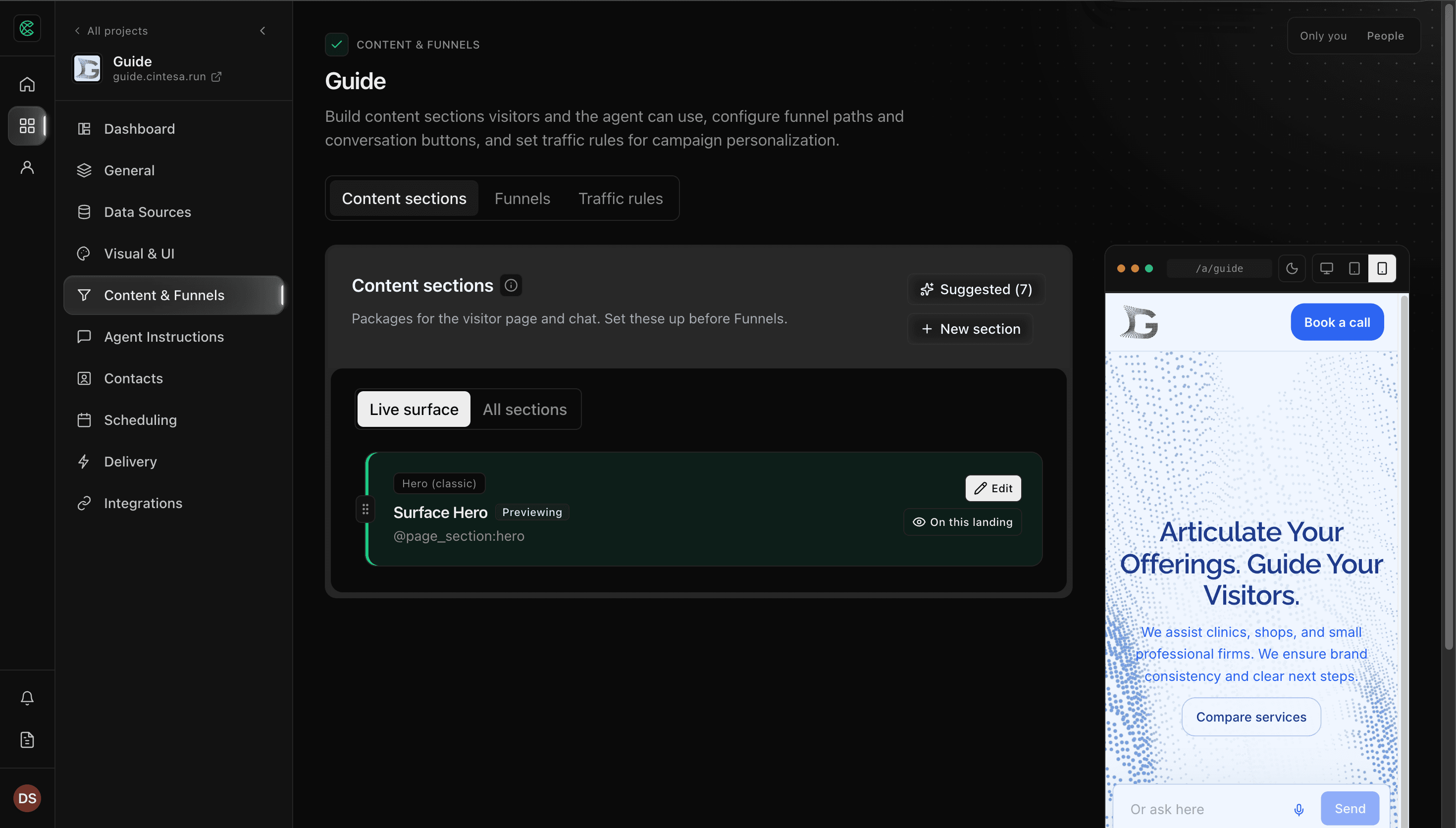
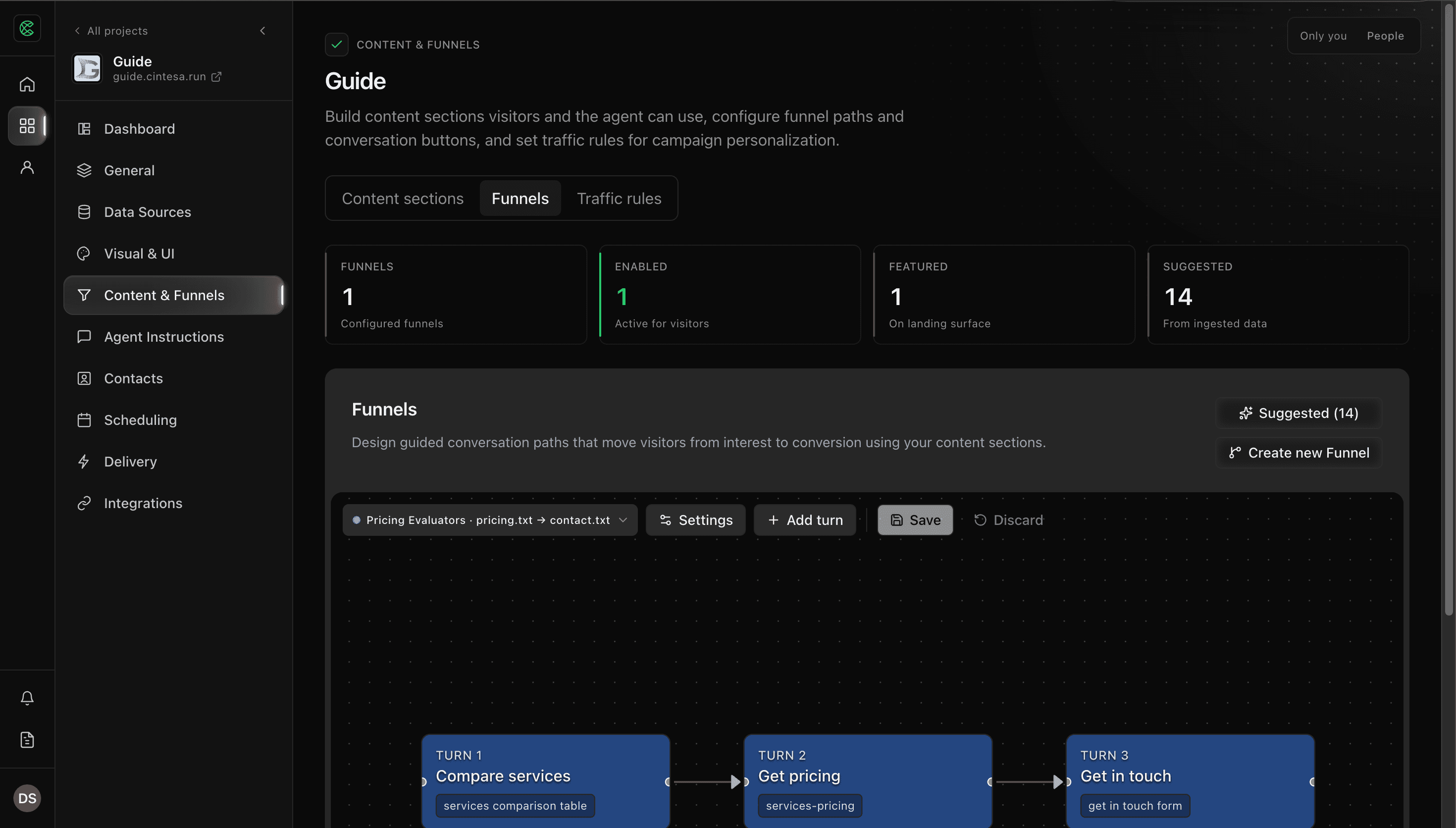
A Funnel is a conversation path you configure here. Do not call it a playbook in the dashboard or in instructions you show operators.
Plan-related feature. Creating and saving Funnels is available on Starter or higher (Funnels & traffic rules). On Basic the Funnels tab shows an upgrade notice and create/save stay off. Creating content sections by hand is available on every plan. See Plans.
Sections first
- Open Sections.
- Create real content (about, services, pricing — whatever the site needs). The seeded landing hero alone does not complete this step.
- Assign each section a language (or all languages). Landing visibility chooses the Live surface landings that show the section. Open the row’s menu (⋮) and choose Landing visibility. The panel lists the language landing for the section’s language and every traffic rule landing in that language, each as a checkbox. Check the landings you want; each change saves at once, and the row’s chip shows the result (Hidden when nothing is checked). A section assigned to all languages has one All language landings row that covers every language; assign it a single language in the editor to limit it. On a multilingual project the panel offers a traffic rule only when the rule and the section share a language — a rule limited to Hebrew is not offered to an English section. A rule you attached earlier that no longer matches the section’s language stays listed with an Other language mark so you can uncheck it.
- Duplicate a section when you need the same tag in another language. Booking and contact-form widgets are the same on every language — duplicate when you want different copy on that language landing. If you do not duplicate, a conversation or Funnel button that asks for the other-language section still shows the widget.
The sections list remembers search, type, language, and traffic-rule filters in this browser. All sections can narrow the catalog to sections attached to a rule, or to sections that are not attached.
On All sections, each row’s select checkbox sits inside the row, under Select all. It stays hidden until you hover that row, or until you use Select all (or select any row). Use Select all on the actions bar to select or clear every section in the current list. That bar sits with the section rows and stays at the top of the list while you scroll, so Delete, Duplicate, and Add a language version stay in reach at the end of the list. Delete opens a confirmation first. Cancel leaves the sections in place. Each row’s menu stays. If some rows fail, the message names those rows and keeps the ones that succeeded. Live surface does not add these checkboxes. It stays reorder and landing visibility.
On a Bio block, the tags field under the title keeps spaces and a trailing comma while you type. The saved tags are the trimmed pieces. Generate content with AI writes every text field on the open block — the title and also each card, step, row, tab, quote, and list item — from your prompt and this project’s website content. It matches each field’s job, so a button stays a short label and a body stays a paragraph. Layout, button actions, forms, scheduling, and media presentation stay as you set them.
Preview a section
When All sections opens, the first section in the list is already selected, marked Previewing, and shown in the preview chrome. Select another section to see its visitor-facing blocks there. The chrome is a full-height browser window beside the list. Choosing another section switches that window in place: the page does not reload, the list keeps its scroll position, and the selected row stays marked, however many sections you step through. Use the desktop, tablet, and mobile controls to check each device shape. The text-size button in the preview header, before the light and dark switch, sets how large the copy reads. Click it to move through the sizes. On a Free Text block, type @ to open Media Library next to that reference. Hover an image in the preview for a dashed frame, a size handle, and a remove control. Drag the image to move it through the text, or drag the handle to change its size. The preview window scrolls when the section is taller than the screen. Hero atmosphere fills the whole hero in every preview mode.
For hero blocks, Full screen height keeps the hero at a stable screen height. Most heroes center their content. Cinematic focal keeps the title and buttons on the bottom edge on a wide screen. On a phone the title overlaps the background, and the blurred surface stays under the title and runs the full width of the screen. The title, text, and in-hero field use the same side spacing as the other heroes. Wider screens stay as they are. The mobile preview uses a phone-sized hero, so that title stays in the same place instead of sinking to the bottom of the editor window. Hero (classic) with Split with right media places the badge and title below the page header on a phone, and the section grows so that intro stays visible. The mobile preview shows that same spacing. Desktop, tablet, and the other classic frames keep their current spacing. On mobile, scrolling does not resize the other full-height heroes. Hero content width includes XL-wide, the widest capped width, and Full width, which uses the same side padding as a full-width header. On Cinematic focal, Top space under Hero height sets the empty space above the title and buttons, with separate desktop and mobile values.
Edit a section
Choose Edit on a section. That section opens on its own page, so the editing layout is there as soon as the page loads. The page title, the Content & Funnels tabs, and the project sidebar stay hidden.
The header sits on the page background. Next to the back arrow it says Back to all sections. The arrow and that title are one control: choose either to return to the section list. On the right it shows who is on this page, with that person’s avatar.
The left side uses the same section panel as Content sections and Page layout: a header in the frame color, with the section name and a short description, then the editing fields on the dark panel surface. Each UI block is an accordion, the same kind used on Page layout, and the accordion runs the full width of that panel. The first block is open. Save section appears in the save row over the bottom of that panel when the section has unsaved changes, the same way other dashboard pages show their save row. The panel keeps its full height. The live preview is a full-height browser window. The section sits in the middle of that window, on the section background, and the window scrolls when the section is taller than the screen. Hover a title, subtitle, or text line in that window and that copy shows a soft shimmer, so the part you will edit is clear. A button or image highlights in place. A pill-shaped toolbar fades in and rises just above the pointer. It stays in place while you move the pointer onto it. On a paragraph it sits close to the line under the pointer. It has a black pencil and a red delete icon. Choose the pencil to open that block’s form on the left, with the matching field ready to edit. Choose the delete icon to clear that part and take it off the block. Hover near the edge of a grouped item, such as an FAQ row, a feature card, a table column or row, a product tab, a slide, or a bio chip. A soft glow and dotted wash appear around that whole item, the same highlight used when you hover a Page layout setting, and its toolbar sits in the top corner. Choose the pencil to edit it, duplicate to copy it, or add to insert an empty item beside it. A title, text line, or image inside that item keeps its own toolbar, with the pencil and delete icon only. The rest of the block does not show the toolbar. The block’s own controls still work, so you can open a product tab, a question, or the next slide and review that content. Hovering an image in a Free Text block still shows the dashed frame for moving, resizing, and removing that image. The desktop, tablet, and mobile controls set the width of that window. Drag the handle on the left edge of the window to do the same thing: the editor width changes, and the window switches device. The width stays until you close this browser tab. The page uses the same background as the rest of the dashboard, including the top-right corner.
Choose Back to all sections to return to the section list. The list opens with that section selected and its row in view. If the section has unsaved changes, the dashboard asks before it discards them.
On a narrow screen, use Preview to open the same frame.
A suggested section still opens in this editor so you can review the draft. New section opens the UI blocks library in a panel over the list. Use block continues into this editor with that first block.
To add a block, change a landing hero layout, or review every library item, see UI blocks.
Suggestions from ingested data
After Data Sources has finished at least one ingest, Content & Funnels can suggest sections and Funnels from that content. Suggestions are review-only — nothing is created until you accept.
Suggest sections
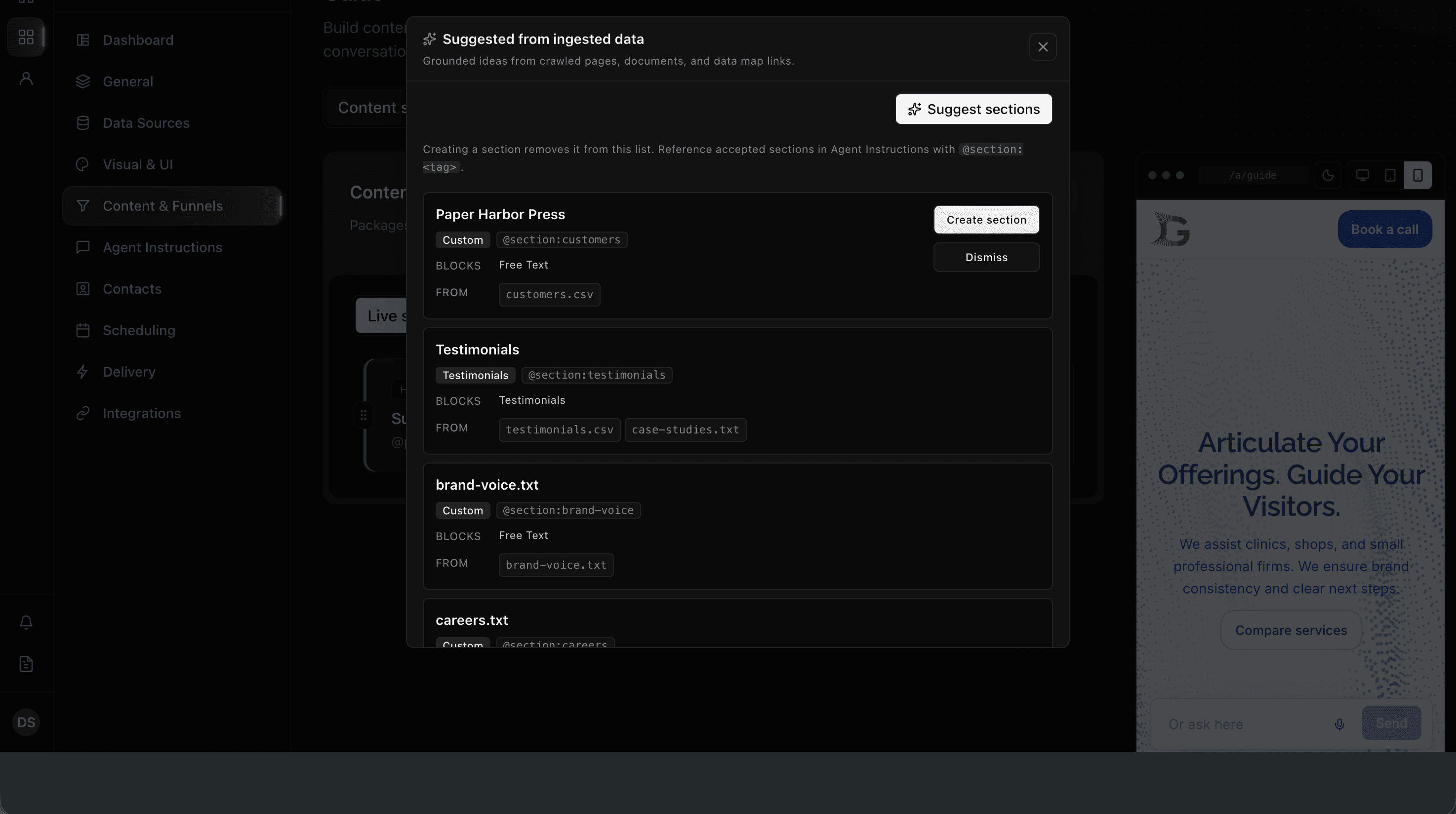
Plan-related feature. Suggest sections is available on every plan after ingest. You still write or generate the copy yourself.
- Open Sections.
- Open Suggested (the count shows how many are waiting).
- Click Suggest sections if the list is empty or stale. You need analyzable ingested pages or files first.
- Review each card (name, type, evidence paths). Select one or more ideas, then Create selected to generate them together. The generation steps panel shows which section is in progress. Create section on a single card still opens that draft so you can edit it first. Dismiss removes that suggestion.
Already-covered topics stay out of the open list.
Suggest funnels
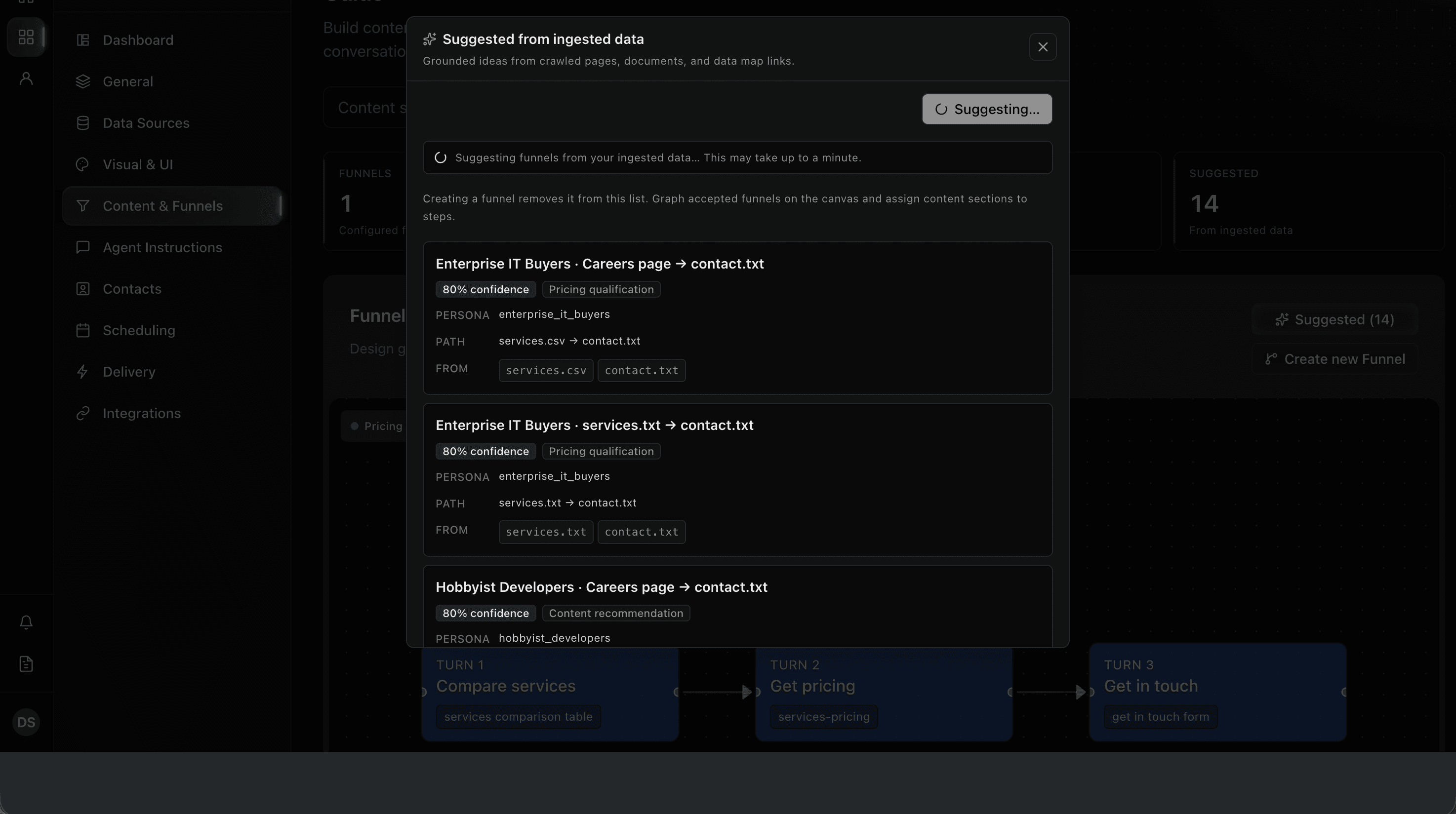
Plan-related feature. Suggest funnels and accepting a suggested Funnel are available on Starter or higher (same as Funnels). On Basic the Funnels tab stays behind the upgrade notice.
- Open Funnels.
- Click Suggest funnels after ingest.
- Review the suggested path (name, steps, evidence). Select one or more ideas, then Create selected. Create funnel on a single card still accepts that one idea. Dismiss removes it.
Accepting a Funnel does not publish visitor behavior until you Save.
Generate section content
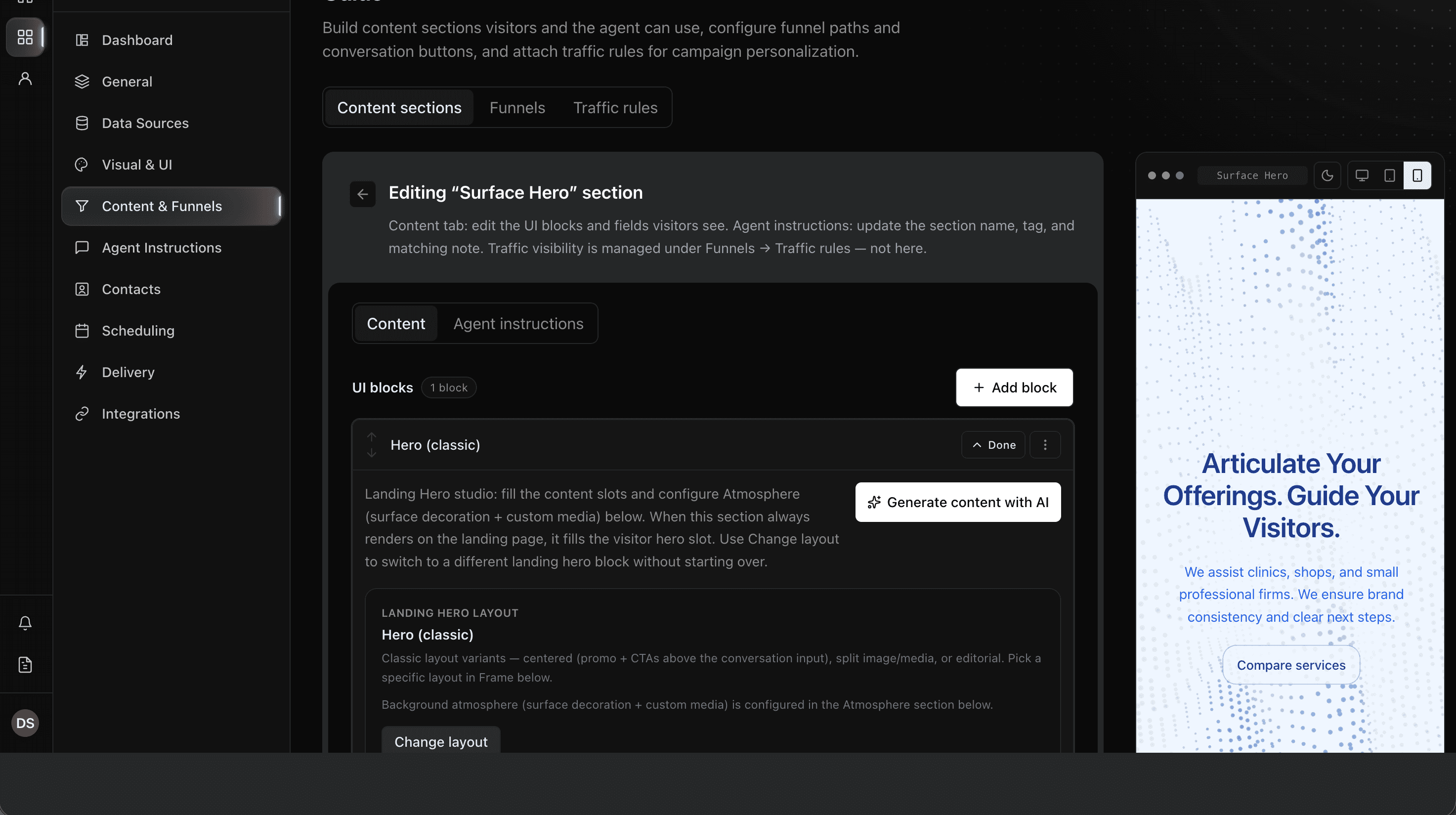
Plan-related feature. Generate content with AI is available on Pro or higher (AI content generation). On Basic and Starter you write section copy yourself; the dashboard shows an upgrade notice on the generate control. See Plans.
- Open a content section (new, blank, or created from a suggestion).
- On a block, use Generate content with AI (or Generate on a single field).
- Describe what you want. Type
@to reference media, ingested documents, or page links from this project. Drag the handle under the prompt if you need more room. Use the close icon — or click outside — to keep the request so you can finish it later. - Wait for the draft. Review every line — generated copy is a starting point, not a publish.
- Edit, then save the section.
Generation reads this project’s ingested pages, brand assets, and the block you selected. It does not invent a second knowledge base. Persona, pricing promises, and what the agent may say still belong in Agent Instructions.
Funnels
- Open Funnels.
- Create or edit a Funnel and assign the sections it should use. On a selected turn, use Add turn or Add another turn in Connections to create the next step without leaving that turn’s settings.
- When the project has more than one language, Funnel settings pick the single Language that Funnel is written in. Duplicate the Funnel to offer another language. A Funnel you have not given a language appears only on the default language.
- For a campaign, landing path, or returning visitor, open Traffic rules and pick this Funnel on the rule. Funnel settings show a read-only Preferred by list; they do not attach rules. Optional Sync locale traffic rules on General → Languages creates path-prefix rules only.
- Featured in suggestions includes that funnel’s opening button above the conversation input when Visual & UI uses featured funnels or both sources. Only an enabled funnel can be featured. A landing hero button opens a funnel when its Action is Open a funnel.
- Save. You can save a Funnel while it is Disabled — visitors will not see it until you turn it on. Disabled funnels show a Disabled mark on the canvas switcher. If save fails, the message says which conversation button still needs a content section and how to fix it. Only enabled funnels must have a complete path before save.
- Delete a Funnel from the funnel list (the trash control on that row) or from Funnel settings. Both use the same confirmation. The row itself still switches Funnels. If that Funnel has unsaved edits, the confirmation says those edits will be discarded. Delete removes that Funnel only.
A button on a content section can open an enabled Funnel. The click starts that Funnel’s first step. Disabled Funnels do not appear in the button’s list. See Buttons on a section.
After a visitor starts a Funnel, later replies do not put that Funnel’s landing button back on the next-step row, and they do not put another button from the same Funnel beside it. The next unused Funnel step can still appear. Actions the visitor already used this session are not shown again.
Conversation surface
Open Funnel settings to control the text field and Funnel next-step button after this Funnel starts. These switches do not start a Funnel or change button labels.
- Hide next step after a custom question — if the visitor types instead of clicking a Funnel button, hide the Funnel next-step button.
- Hide conversation input while the Funnel is in progress — after the visitor starts this Funnel, hide the text field so they continue with Funnel buttons.
- Show next step above the conversation input after a custom question — if the visitor types a custom question, place the Funnel next-step button above the text field instead of under the reply. This switch stays off while Hide next step after a custom question is on.
When the next step stays under the reply, it sits with that reply.
A saved Funnel still runs after the organization has used its included messages. Funnel steps show the sections and buttons you configured. They do not send a model request. If a step's section is slow to open, the visitor sees that step's summary instead of waiting on the section. The public text field is replaced with Typed replies are unavailable right now. Typing, including a custom question during a Funnel, follows that stop. See Reply expectations.
Live surface
Live surface composition can preview a language URL or a traffic rule. Search or filter the composition select by language or traffic rule — the Live surface section rows themselves are not a searchable catalog. Each row has an On this landing switch for the composition you are previewing. All sections uses Landing visibility in each row’s menu to check the landings that show the section.
The select lists a traffic rule only when Content sections are attached to it — from the rule, or from a section’s Landing visibility. Funnel-only rules stay on Traffic rules; they are not a Live surface composition. Leftover language-path rules from Sync locale traffic rules stay on Language options — they are not listed as traffic-rule compositions. A disabled rule with attached sections can still be previewed.
- A language lists sections assigned to that language whose Landing visibility has the language landing checked. Leftover language-path attachments do not hide a language package.
- A traffic rule lists only the sections attached to that rule — the sections whose Landing visibility has that rule checked. Language-only sections stay off this list. That composition uses the attached landing hero, or no hero if none of those sections is a hero package. The language landing hero does not appear on this composition. Drag a section above the hero row to place it above the hero for visitors. If the rule is limited to one language, Live surface previews that language URL and lists attachments for that language.
Chat reply language stays in Agent Instructions.
© 2026 Cintesa. Guide text and screenshots are Cintesa product materials for personal and operator use. Do not scrape or republish them commercially without permission. Terms of Service · Privacy Policy.