

Visual & UI
Pick a Cintesa theme, save Visual & UI, and set page layout including the language switcher.
Last updated on
Open Visual & UI. This is workflow step 3.
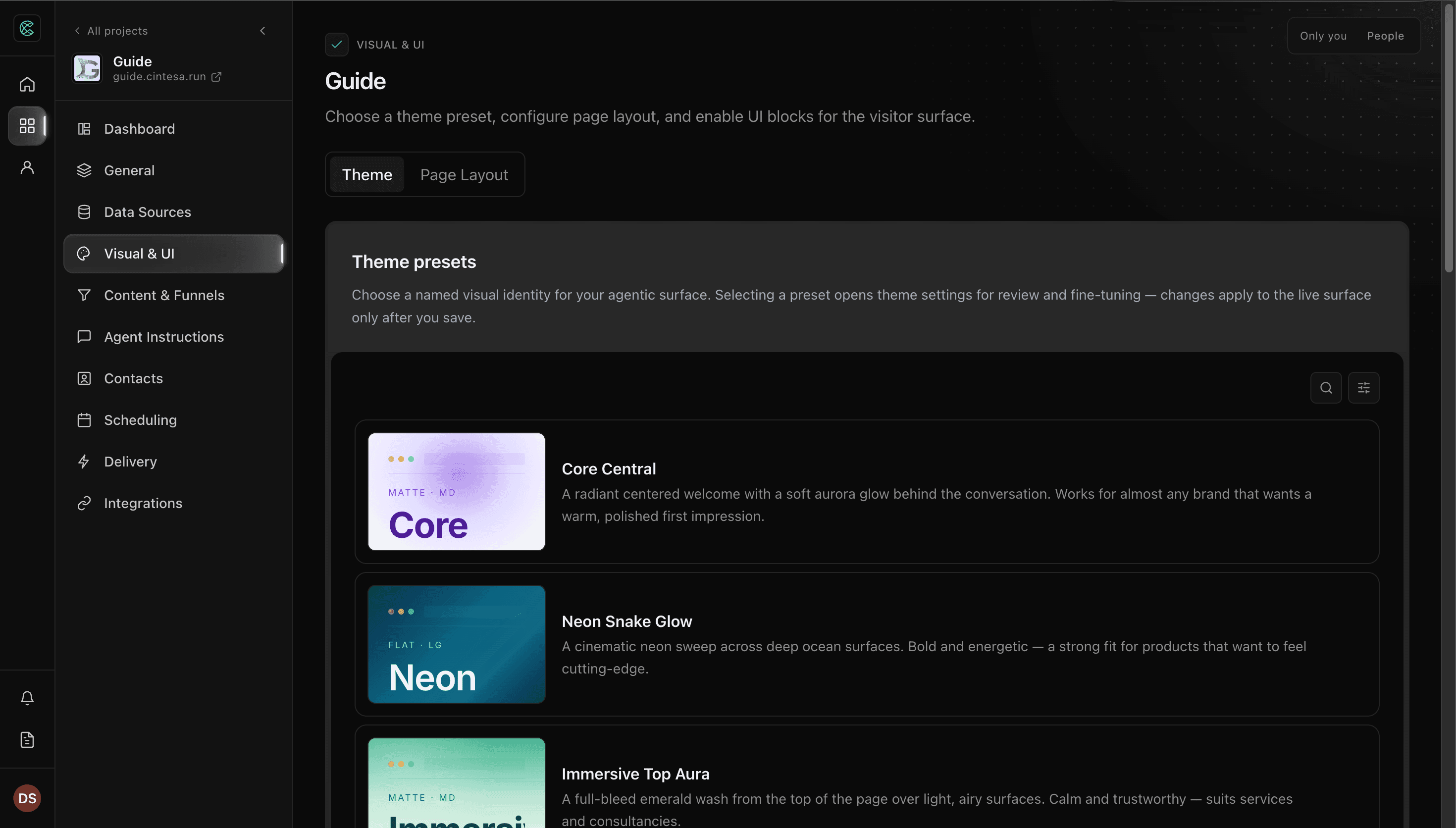
Theme
- Browse the theme list. Each row shows a larger thumbnail of the theme colors, the theme name, and a short description.
- Click a row to select that theme and open its token settings for review and fine-tuning.
- Save Visual. The step needs a theme plus that save.
Corner radius Pill keeps buttons and single-line fields fully rounded. A message field stops at a smaller corner, the same limit used on cards and the conversation input, so a short message box does not become a capsule.
Industry decoration and typography size live on this surface. Atmosphere (first-viewport background) is not set here — open the landing hero → Atmosphere. The UI blocks library — the layouts you place on sections — lives under Content & Funnels.
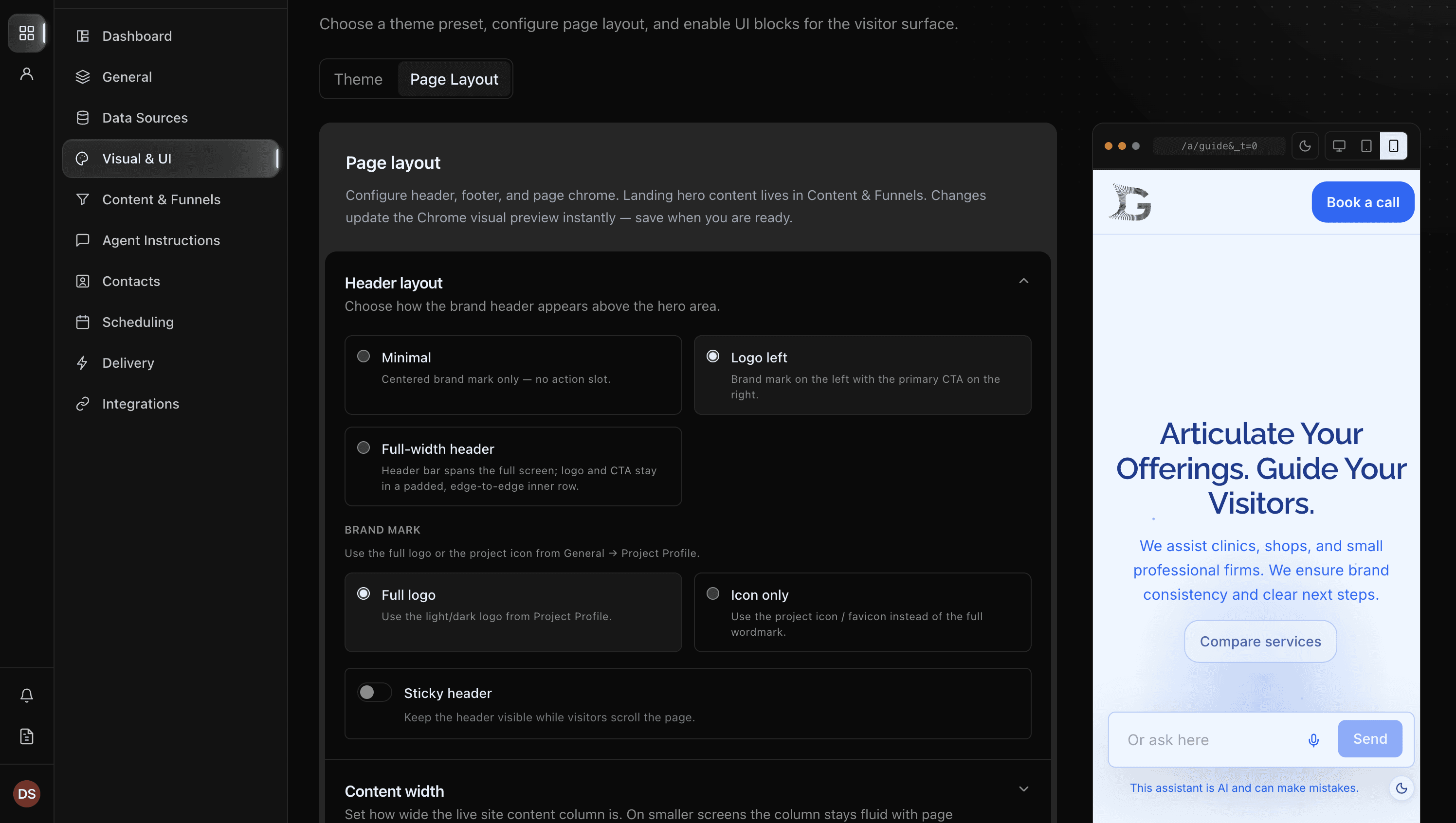
Page layout
Under Visual, configure page layout: header, footer, the light/dark theme switcher, the font size control, and (when the project has more than one language) the language switcher. The language switcher is URL navigation (placement, dropdown or cycle, then look: icon / name / flag / code). It is not a cookie or browser-language redirect. When the name is shown, each language uses its own name, whatever language the page is in. In the footer, the control sits clear of the bottom edge of the page on a phone and on a computer. Pointing at a language highlights that whole row. Choosing a language keeps the list open and shows a progress indicator on that language until the page in that language has loaded.
Conversation input includes Show suggested questions above the input. It stays off until you turn it on, including on projects that already exist. Off leaves the field as it is. On, focusing the field shows up to four opening questions, using the same buttons as a Funnel continuation. Suggestion source chooses where they come from:
- AI-generated project context writes the questions from this project's published instructions and website content.
- Featured project funnels uses funnels marked Featured in suggestions.
- Both lists featured funnels first, then fills any open places with those questions, up to four.
Each button is a short title. Choosing an AI question asks about that topic. Choosing a featured funnel opens that funnel. On a project with more than one language, the button and the question it sends are in that language. The same topics stay available. The buttons come in one after another with the animation set under theme tokens. The field keeps a band above it for those questions before they appear, in the hero, in the page, or on the bottom bar, so the field and the page do not move when the questions show. The first question lines up with the field and stays fully on screen. Moving through the page with the keyboard reaches those questions before the field. A question past the edge of the row scrolls into view, and its focus ring stays visible. The row runs out to the edges of the screen, past the page column. On a phone it stays on one line, and you swipe it to bring the next question fully into view. On a phone the questions stay hidden until the visitor taps the field. They then sit with the field above the keyboard, and swiping them does not move the page. On an iPhone that swipe scrolls the questions sideways, and tapping one still sends it. The field stays where it is while the page scrolls. Scrolling the page does not move that row or the field. Tapping a question sends it, the keyboard closes, and the field returns to the page. Leaving the field without sending hides the questions. On a phone, closing the keyboard does the same and puts the field back in the page. The page keeps the space the field had. The questions do not cover hero buttons or other hero content. A topic already covered in the conversation drops out. Questions the reply itself offers stay with that reply. Save page layout after you change the source. The AI questions update from the published instructions and website content.
Voice input is on until you turn it off, including on projects that already exist. On, visitors who can dictate see a microphone in the conversation field. They speak, the words appear in the field, and they send the message the same way they would send typed text. Each word is written once. Pointing at the microphone shows Dictate next to that button, in the page language. On a phone that label closes within two seconds, and it closes right away when the visitor taps the message field or anywhere else. While the visitor is speaking, the button shows a crossed-out microphone and the label switches to stop. Text a visitor types stays on the same row as the microphone and Send while it fits. Once it wraps, the text spans the field and sits above the microphone and Send. Suggested questions stay above the field. On a phone, and on a computer when the field sits in the page, it scrolls with the conversation until the visitor taps it. That scroll does not jump or shift the field. That tap does not scroll the page. While they type, the field sits above the keyboard together with suggested questions, the note under it, the font-size control, and the theme switcher. That group stays where it is if the page scrolls. On a phone the background behind that group continues below it while the keyboard is open, so the page does not show through. Closing the keyboard puts the field back in the page. The page keeps the space the field had, and the top of that group fades so the conversation still shows through. A longer message grows upward, one line at a time. Sending it puts the field back in the page, and the message appears in the conversation the same way it does on a computer. Extra lines stay on the screen and do not cover those suggested questions. On a phone, Send is an icon. Tapping Send submits that message on the first tap, including while the keyboard is open. An empty message stays in the field. Browsers that cannot take voice input hide the microphone. Off removes the microphone everywhere: in the hero, in the page, and on the bottom bar.
On a phone, a short reply takes only the space of that reply, in portrait and landscape, so the conversation field stays on the screen. A longer reply continues down the page. A tablet and a computer are unchanged. While a reply is being prepared, the page footer stays below the screen, including the moment after thinking ends and before the reply appears. The footer shows when the visitor scrolls to the bottom of the page.
With Sticky bottom, the field stays at the bottom of the screen. A language switcher set to the footer stays in the footer, on the landing and after a reply. Choosing a suggested question sends that question. Focusing the field places the page background behind the field and the questions, and that background fades at the top, the same way it does for the hero field and the in-page field. On a phone that background continues below the field while the keyboard is open.
When the conversation input sits inside the hero and that hero is full height, the input stays on the first screen. Each hero layout keeps its own alignment, so a centered hero keeps the copy and the input together in the middle. A cinematic hero keeps the title and buttons on the bottom edge and uses the spare space above them. With In-hero selected, that field sits in the same band, under the two columns, on the blurred surface. That height is settled on the first paint, so the hero does not jump after the page appears.
For AI agents links shows agents.txt, llms.txt, ai.txt, and the OpenAPI description in the footer. Off hides that row on the live page, including when the footer layout is None. The files stay at their addresses.
Header layout choices are Minimal, Logo left, Full-width header, No header, and Pill header. Existing projects stay on Logo left until you change them. No header hides the visitor header, including the brand mark and header button. A language switcher set to Header still appears in the footer. Pill header floats the same header contents in one inset rounded bar over the page, so the bar does not reserve a row of height. The first block keeps extra top padding equal to that bar, so the bar does not cover its content. Footer, hero, and the conversation input stay as you set them. The visitor page keeps the footer, including Powered by Cintesa, where it first appears, and the first load stays responsive.
Primary, Accent, and Secondary button colors on content sections come from the theme tokens on the selected theme. Choose the style on the button. See Buttons on a section.
Theme token settings include Header style: Solid or Glass. Solid is the default and matches the current header. Glass blurs what sits behind the header and lays a moving caustic light on that header only. A pill header always uses that glass. When the visitor asks for reduced transparency, the header stays a solid fill and the caustic is hidden. Inputs, cards, atmosphere, and the footer do not change.
Show theme switcher is the only theme-switcher setting. When it is on, a larger screen shows the control at the bottom-right of the page, inset from the edges. A phone shows it below the conversation input. On a light page the control is dark. On a dark page the control is light. On a phone, the browser bar uses the landing page background for the light or dark theme the visitor is viewing. Switching the theme updates the bar. A browser that cannot tint the bar keeps its usual color. Hero media and Atmosphere files that have both a light and a dark file switch with the theme. A file set for only one theme stays on screen in light and dark. Opening or refreshing the page uses the theme the visitor last chose. If they have not chosen one, the page uses the project setting: light, dark, or the device theme.
Accessibility Tool has one setting, Font size control. It stays off until you turn it on. When it is on, visitors see a small A and a large A. The small A makes the text smaller. The large A makes it larger. On a computer the control sits at the bottom-left of the page, level with the theme switcher. On a phone it sits below the conversation input, before the theme switcher. The choice is remembered on that browser.
Social links
Official profile URLs belong in General → Project Profile. Footer layouts (except None) and the Social links block render them.
© 2026 Cintesa. Guide text and screenshots are Cintesa product materials for personal and operator use. Do not scrape or republish them commercially without permission. Terms of Service · Privacy Policy.