

Project management
Control whether a Cintesa project is live for visitors, under construction, or accepting conversations — and delete the project when you are done.
Last updated on
Open General → Management. This tab is not a workflow step. Save management is separate from Save general.
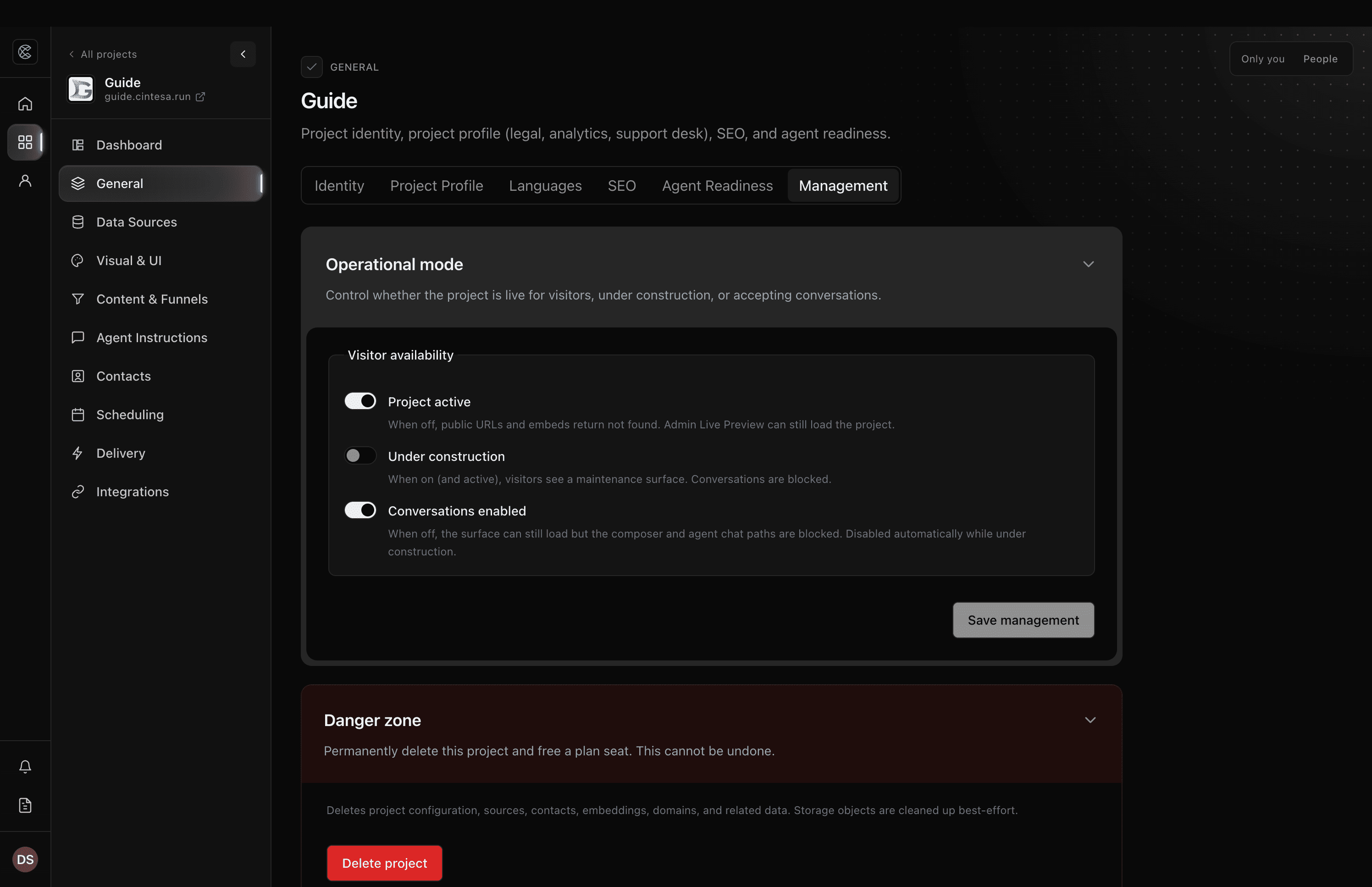
Owners and Admins change these settings. Marketers can open the project but cannot change operational mode or delete. Client Sharing portal users do not see this tab.
For a first launch checklist, see Go live.
Operational mode
Control whether the project is live for visitors, under construction, or accepting conversations.
Visitor availability
| Control | When on | When off |
|---|---|---|
| Project active | Public hosted URLs and embeds can load (the other two toggles still apply). | Public URLs and embeds return not found. Dashboard Live Preview can still load the project. |
| Under construction | Visitors see a maintenance surface. Conversations are blocked. | The full visitor surface can load if the project is active. |
| Conversations enabled | Visitors can use the composer and talk to the agent. | The surface can still load, but the composer and agent chat paths are blocked. |
Under construction and Conversations enabled stay disabled while Project active is off. Turning Under construction on turns Conversations enabled off automatically and keeps that toggle disabled until you leave construction.
Home and the Projects list show the same state as Inactive, Under construction, or Conversations off.
What visitors see
- Project active off — public hosted URLs, custom domains, and embeds return not found. Other AI systems cannot reach Agent readiness files on that URL.
- Under construction (and active) — a maintenance page. Conversations, public agent entry, and booking paths stay closed. Live Preview still shows the real site.
- Conversations enabled off (and active, not under construction) — the landing page can load. Chat is blocked.
Turning the project inactive does not delete data. Use that when you need the public URL gone without removing the project.
Save management
Toggle changes do not apply until you click Save management. That save does not complete workflow step 1 and does not publish Agent Instructions.
You can also change these modes from the project card menu on Home or the Projects list (activate or deactivate, enter or exit construction, enable or disable conversation mode). Those menu actions save immediately. Danger zone on that menu opens this tab.
Danger zone
Permanently delete this project and free a plan seat. This cannot be undone.
Deletes project configuration, sources, contacts, stored answer content, domains, and related data. Storage objects are cleaned up best-effort.
- Click Delete project.
- Type the exact project name shown in the dialog (usually the Identity name).
- Confirm. The dashboard returns you to the Projects list.
After delete, that project no longer counts toward the organization project seat — see Plans and Limits.
Do not delete a project to pause it. Turn Project active off, or put it Under construction, instead.
Who can do this
| Role | Operational mode | Delete project |
|---|---|---|
| Owner | Yes | Yes |
| Admin | Yes | Yes |
| Marketer | No | No |
| Client portal | Tab hidden | No |
© 2026 Cintesa. Guide text and screenshots are Cintesa product materials for personal and operator use. Do not scrape or republish them commercially without permission. Terms of Service · Privacy Policy.