

Scheduling
Turn on Cintesa booking, add bookable team members, assign them to a service, then take appointments.
Last updated on
Open Scheduling. This unlocks after the five-step workflow. Visitors book through the Appointment Scheduler block on a section or in conversation.
Plan-related feature. Available on Pro or higher (project scheduling). On Basic and Starter the page shows an upgrade notice. See Plans.
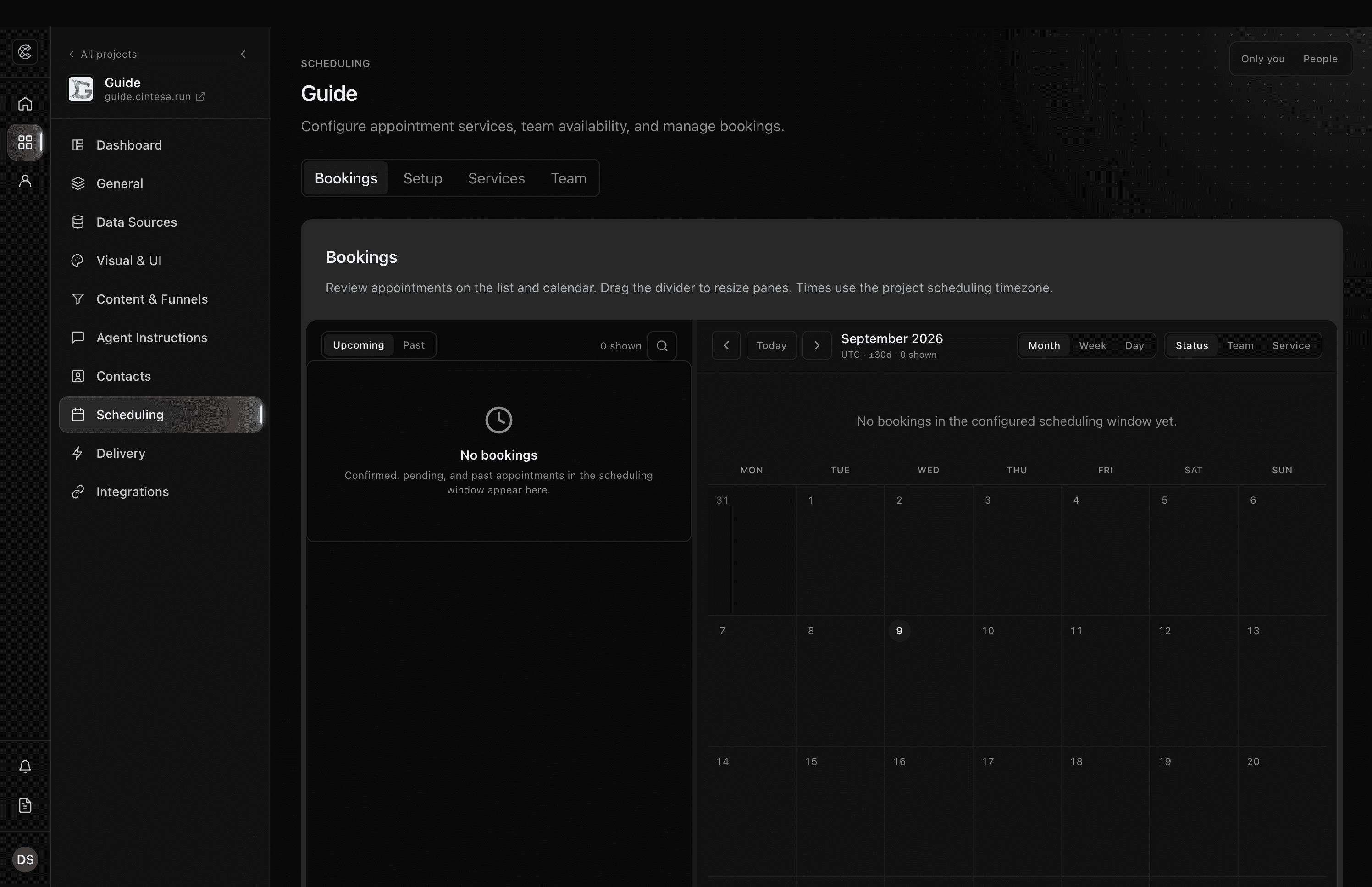
Scheduling has four tabs: Bookings, Setup, Services, and Team.
Scheduling → Team is not organization Team members. Team members control who can sign into the workspace. Bookable people (hours, booking email, who can take a service) are created only on Scheduling → Team — add them here even if they already have org access.
Setup
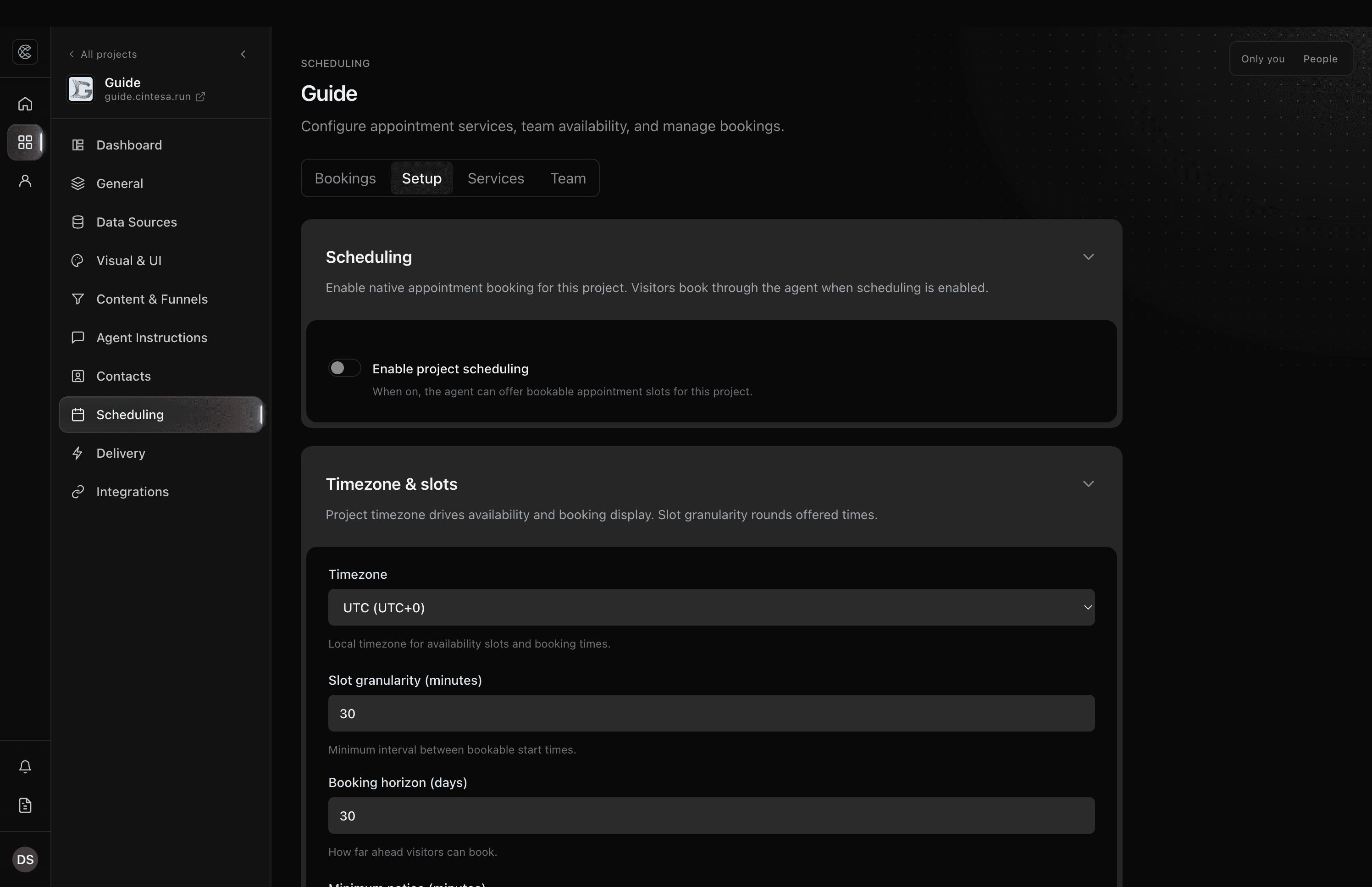
- Open Scheduling → Setup.
- Turn scheduling on.
- Set timezone, confirmation mode, customer email toggles, and remote meeting defaults.
- Set Default host — the face on the visitor widget when the agent does not prefill a team member.
- Save.
Connect Integrations → Agent tools → Booking → Google Calendar when you want busy-time blocking or automatic Meet links.
Add a team member
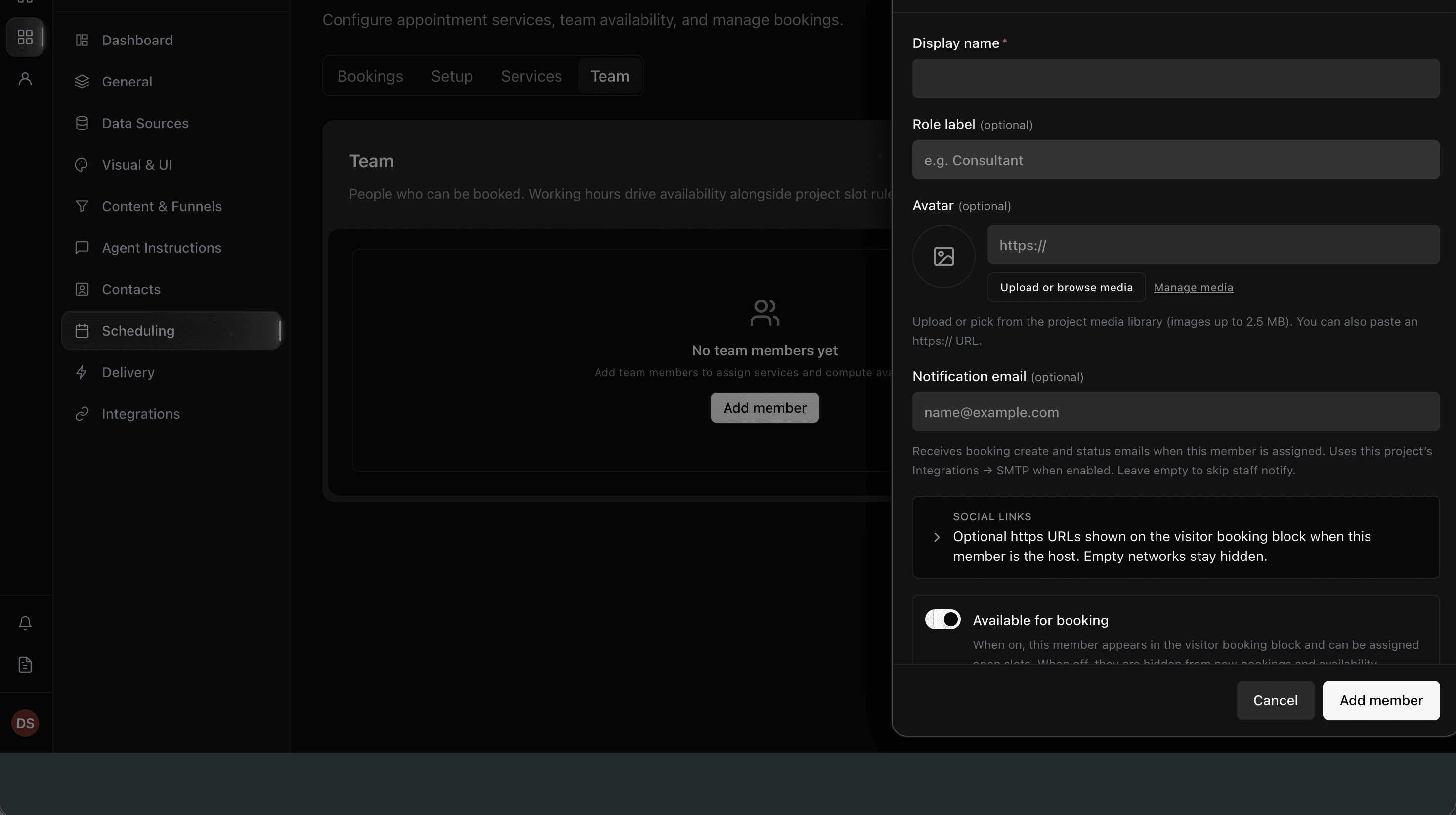
Do this before (or while) you create services, so you can assign people.
- Open Scheduling → Team.
- Add a member: display name, role label, optional avatar.
- Set weekly hours so availability is real. An enabled day uses the hours on that row. Turning a day on with no custom range keeps 09:00–17:00, including Saturday and Sunday.
- Set Notification email — that address gets create and status mail for bookings this person is assigned to. It is not Lead notification emails.
- Save. Leave the member active if they should appear in availability.
You can add someone who is not an organization member. They do not get a dashboard login from this tab.
Services (session types)
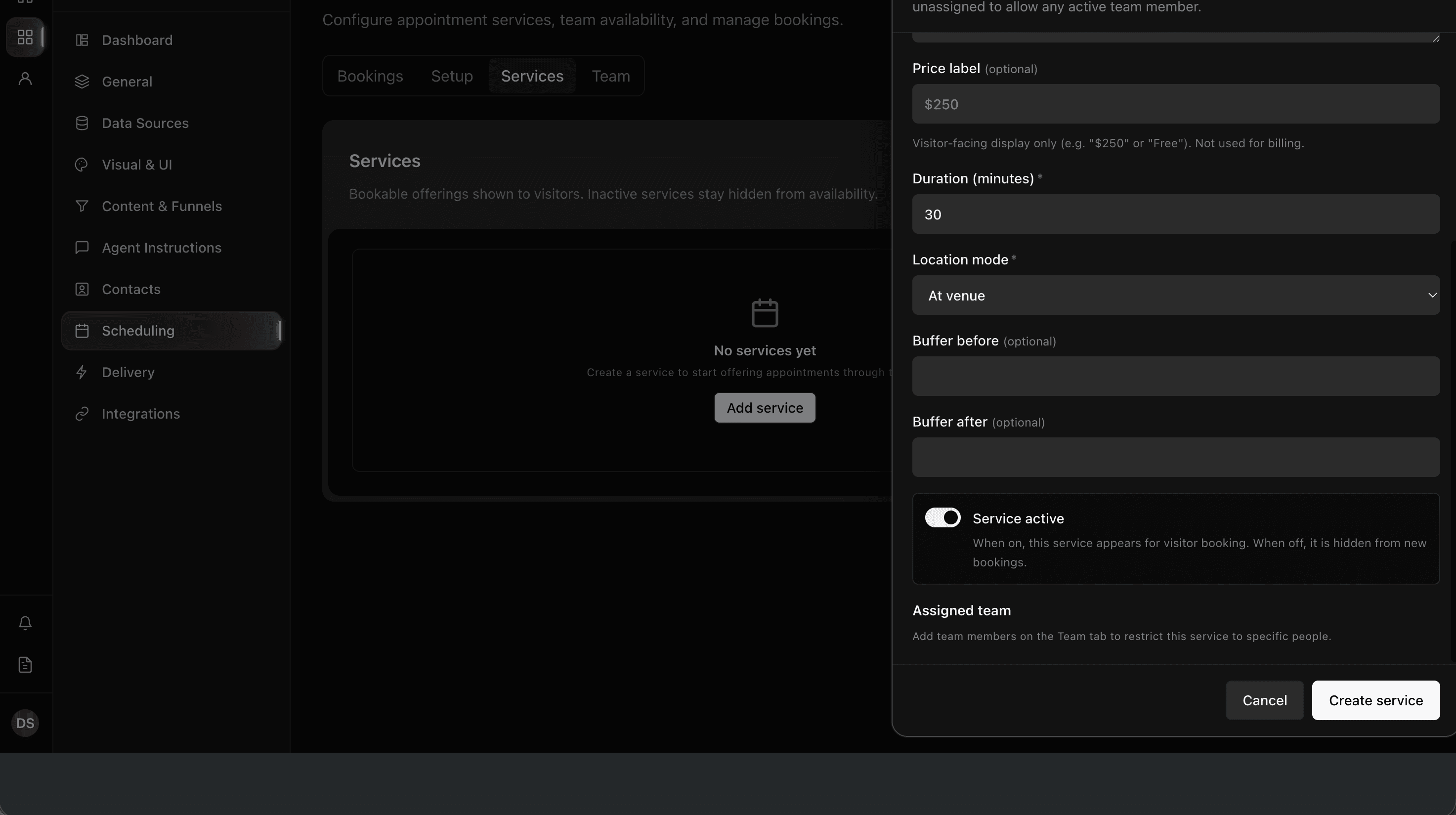
- Open Scheduling → Services.
- Create a service: name, description, price label, duration, location mode, buffers, active.
- Under Assigned team, check the Scheduling → Team members who may take this service.
- Leave every checkbox unchecked if any active team member may take it.
- Save.
Each service has a tab for every language on the project. The default language is the source for the name, description, and price label. Generate localizations writes the other languages. Review and edit them, then publish. A language that already has a translation is left as it is unless you confirm replacing it. Empty fields keep the default-language text. Save the service before adding other languages.
Plan-related feature. Generate localizations is available on Pro or higher (AI content generation). You can still edit each language by hand on every plan that includes Scheduling. See Plans.
At book time the platform picks an assignee from the eligible staff. The widget — calendar, weekday names, times, and Book Now — follows the page language. A published translation is used for the service name, description, and price label. Until you publish one, visitors see the default-language text.
Show booking on the site
Place the booking widget on a content section, or tell Agent Instructions when to offer a booking. Preview on the Preview surface. The widget loads on hosted, vanity, and custom-domain visitor sites. If it cannot load, visitors see a plain unavailable message — not a raw error.
On a language URL, the landing only shows a booking section assigned to that language (or all languages). Duplicate the section for the language when you want that copy on the landing. If a visitor asks in conversation — or a Funnel button asks for a booking section that exists only in another language — they still get the booking widget. The widget follows the page language.
Bookings
Open Scheduling → Bookings for the list and calendar. Open a row to change status, add contact notes, or copy personal calendar links.
Canceling or moving a booking is handled here — not in conversation logs.
© 2026 Cintesa. Guide text and screenshots are Cintesa product materials for personal and operator use. Do not scrape or republish them commercially without permission. Terms of Service · Privacy Policy.