

Contacts & forms
Add a Cintesa contact form on the site and review submissions on Contacts.
Last updated on
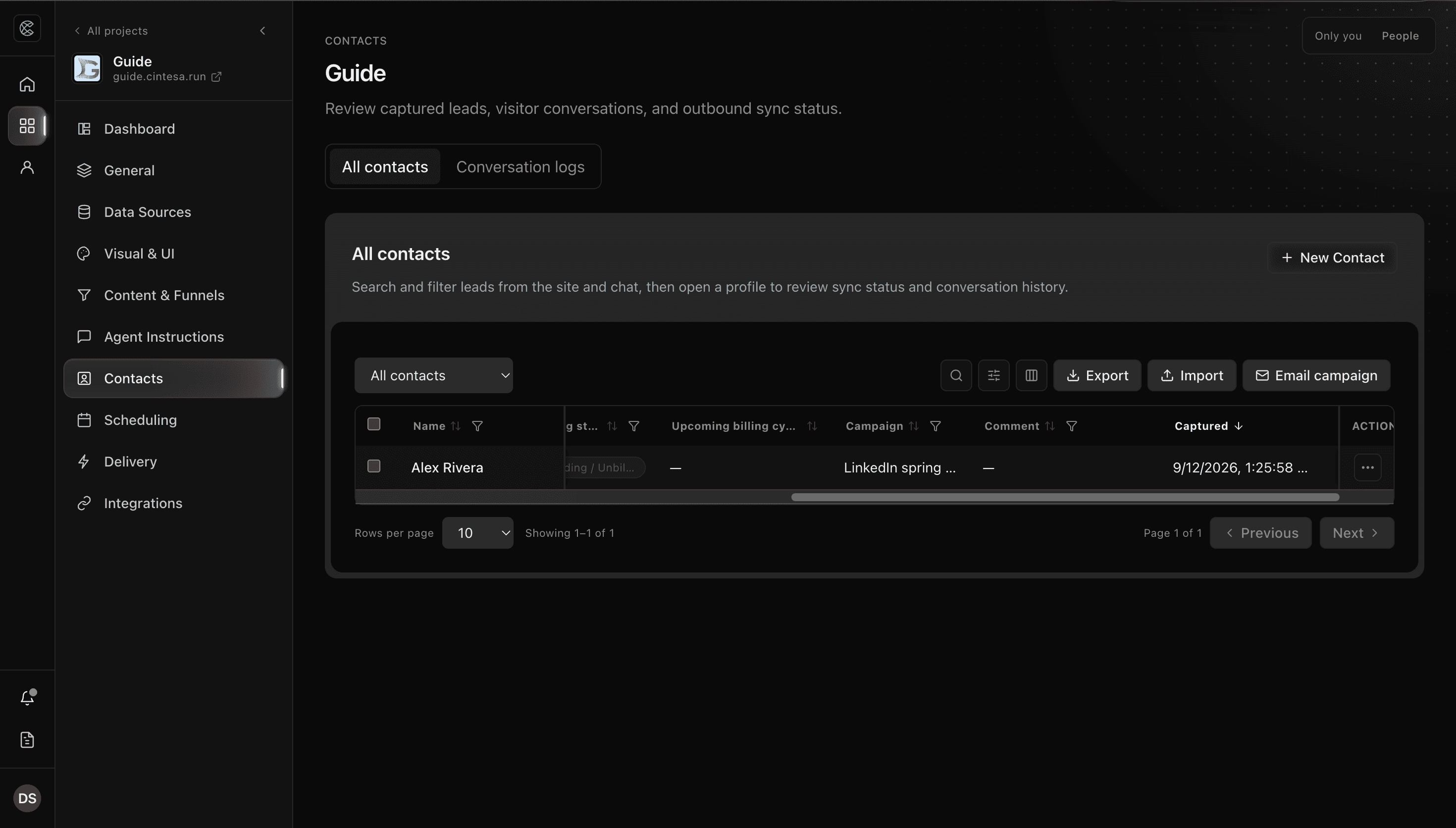
Open Contacts after the five-step workflow is complete. The default tab is All contacts. Session transcripts are a different tab — Conversation logs.
Forms
- Add a Contact Form on a content section (or let the agent offer one when instructions say so).
- Set the fields visitors must complete. Mark a field sensitive when it should stay masked until an operator reveals it — see Visitor data & privacy.
- Save the section and the Funnel that includes it.
All contacts
- Open Contacts → All contacts.
- Use the form dropdown when you have more than one form and need that form’s submissions only.
- Search the table by name, email, phone, or comment. On a single-form view, search also matches that form’s field values.
- Open a row for the contact profile: timeline, linked session, CRM sync status, notes.
- Mark read, archive, run bulk actions, or start an email campaign from the toolbar.
Submissions are not deleted when conversation logs are cleaned up.
The Campaign column shows the latest qualified campaign for an identified visitor submission (form or booking):
- A matched traffic rule uses the rule name. The highest-priority campaign rule wins when several match.
- If no rule matches, a valid
utm_campaignquery uses that sanitized campaign name. - A later submission through another traffic rule or
utm_campaignupdates the value. A submission with neither leaves the existing value unchanged.
The column badges Traffic rule and UTM so you can tell those two sources apart. Manual, imported, and older contacts keep the campaign name without a badge when no captured source is stored.
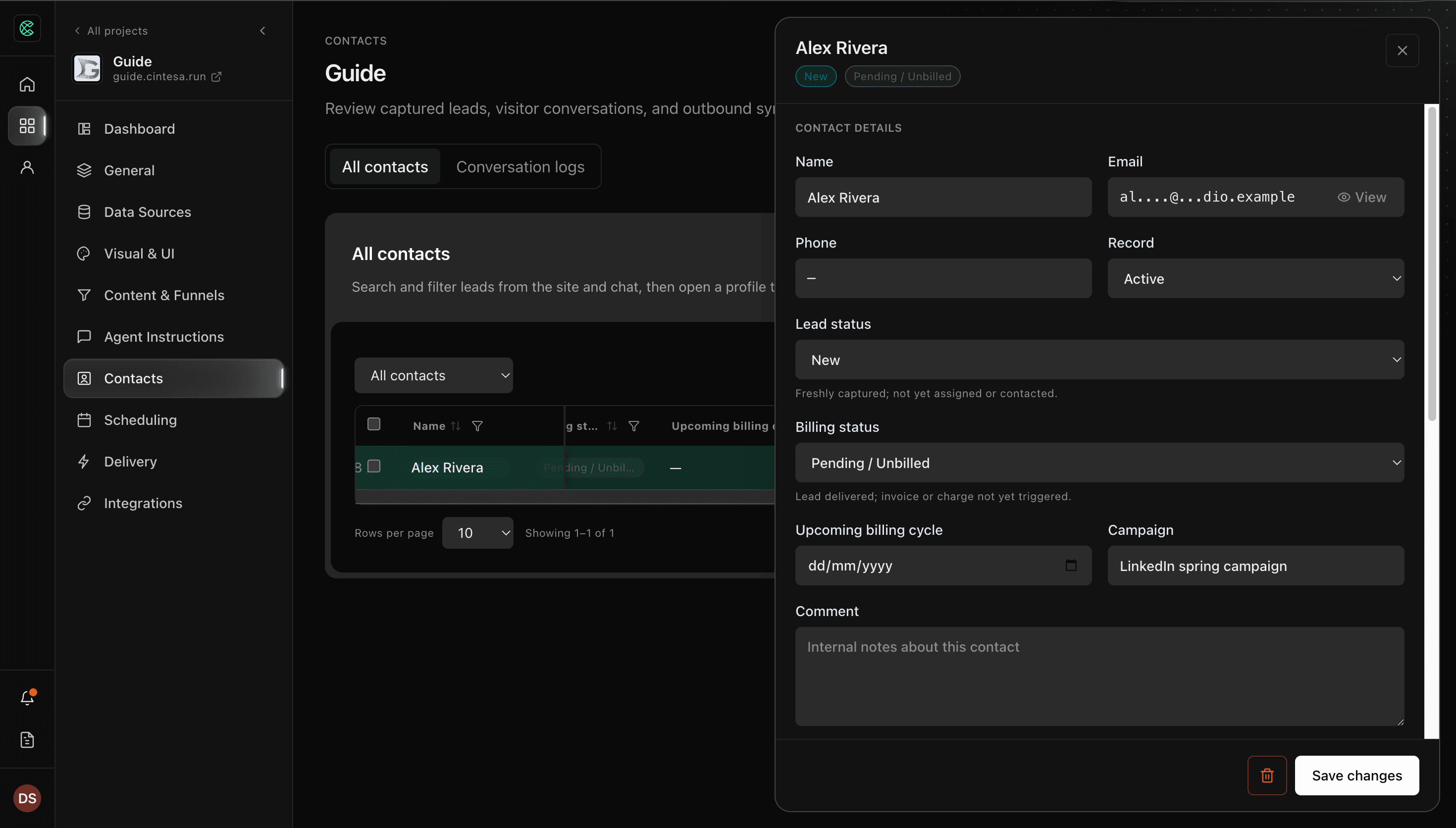
The contact profile lists the safe attribution details: source, medium, campaign, term, content, landing path, and referrer domain when they were captured. Cintesa does not keep the full URL, raw query string, click IDs, or arbitrary parameters. Language-homepage rules and admin previews are excluded.
CSV export includes those same canonical UTM fields and the attribution source so you can review them outside the dashboard.
Email campaigns
Email campaign on the contacts toolbar sends a one-time message to the contacts you select. It uses this project’s SMTP settings. Open Integrations → SMTP, save the sender, then return here. The panel tells you to configure SMTP before a campaign can send.
Lead alerts and booking mail are separate. See Notifications.
After a lead arrives
Connect CRM if you want the same contact copied to HubSpot or another destination. Set Lead notification emails if the team should get mail (the sidebar bell is separate). Use Scheduling when the next step is a booking, not a form.
© 2026 Cintesa. Guide text and screenshots are Cintesa product materials for personal and operator use. Do not scrape or republish them commercially without permission. Terms of Service · Privacy Policy.