

Slack live chat
Hand a Cintesa visitor conversation to a human in Slack when published instructions say to.
Last updated on
Open Integrations and connect Slack for live chat.
Plan-related feature. Available on Pro or higher (Agent tools). On Basic and Starter the dashboard shows an upgrade notice. See Plans.
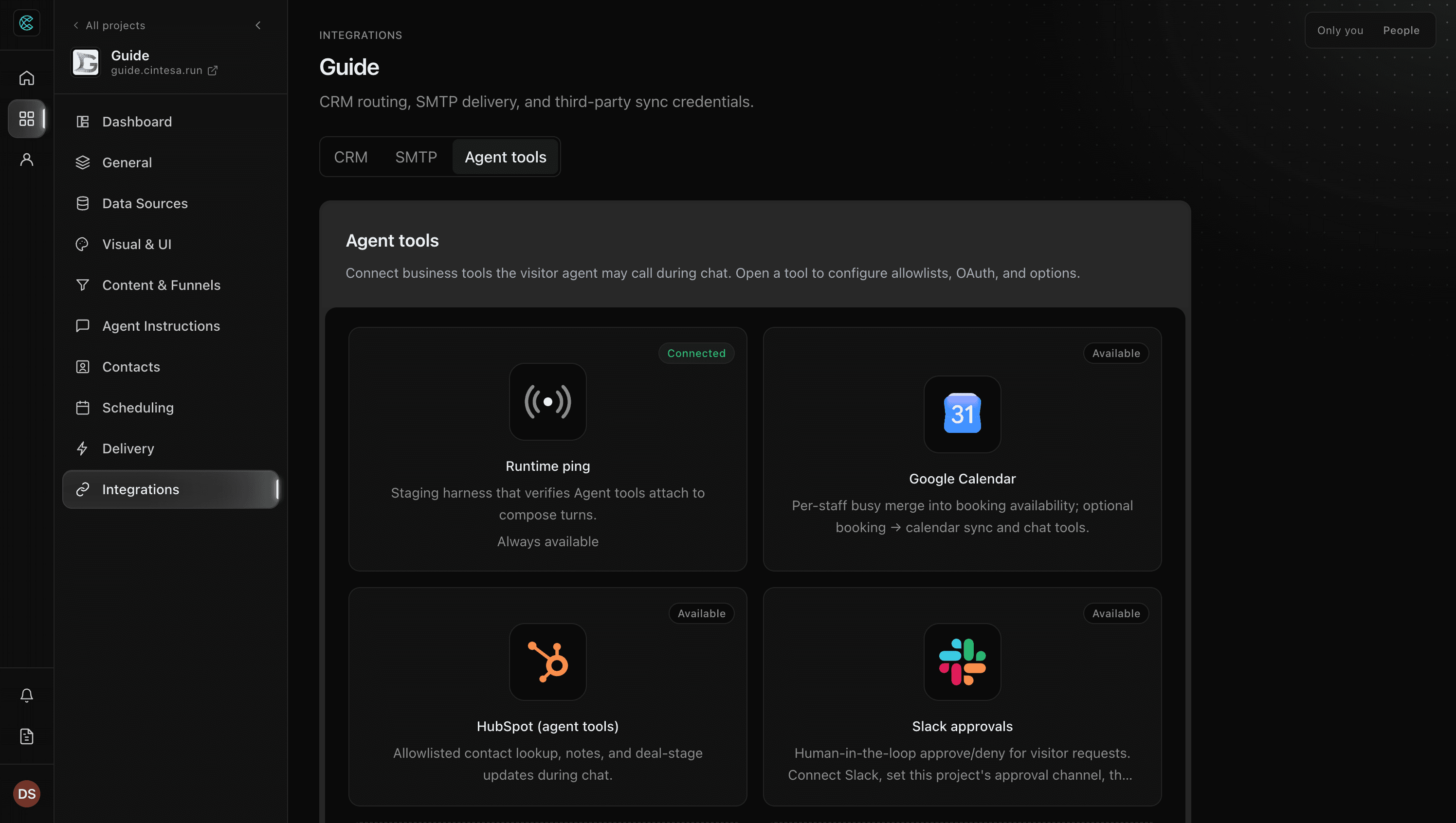
- Install the Cintesa Slack connection for the workspace you want.
- Set the default live-chat and approval channel.
- Add named live-chat destinations when campaigns should reach different teams. Give each destination a clear operator name and Slack channel ID, invite the Cintesa bot, then test the connection.
- On a traffic rule, optionally choose the named destination for that campaign.
- In Agent Instructions, say when the agent should offer a human (and when it should stay in the automated thread).
Staff reply from Slack; the visitor sees those replies in the same chat. This is live handoff for a project visitor, not the organization Support channel between dashboard operators and Cintesa.
Campaign destinations affect live chat only. Approval requests keep using the default approval channel. If a selected destination is removed, the campaign uses the tested default channel instead and the traffic-rule editor shows that the reference needs attention.
© 2026 Cintesa. Guide text and screenshots are Cintesa product materials for personal and operator use. Do not scrape or republish them commercially without permission. Terms of Service · Privacy Policy.