

Support
Open and follow a Cintesa support request from your organization dashboard.
Last updated on
Organization Owners and Admins can open Support from the organization navigation. On Home, Projects, and Org Settings, it is in the sidebar. On a project page, hover All projects at the top of the project sidebar, then choose Support. Marketers and client portal users do not have access. Support is available to every organization; it is not a plan feature.
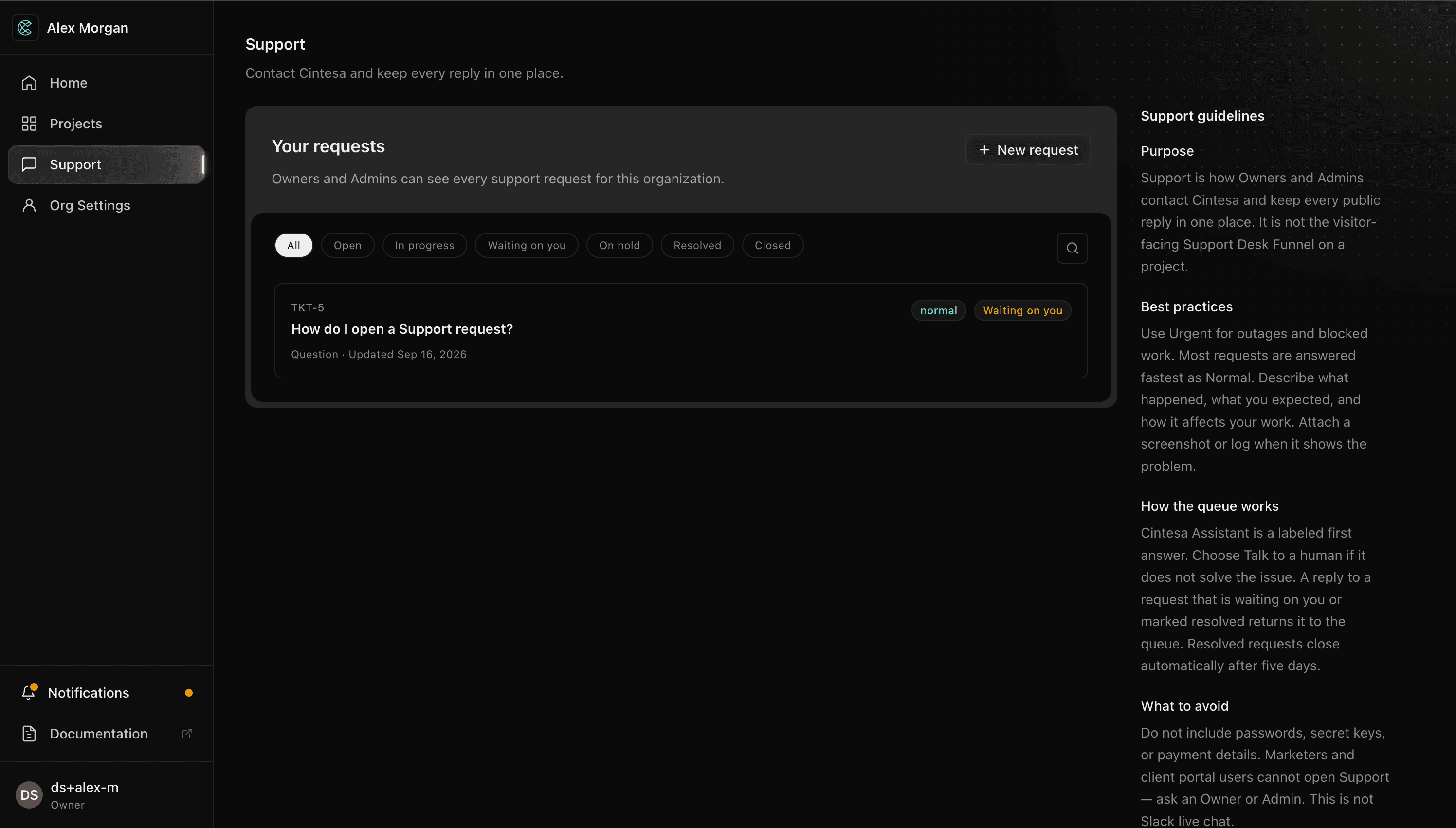
Open a request
- Open Support and choose New request.
- Add a short subject, then choose a category and priority.
- Describe what happened, what you expected, and how the issue affects your work. Markdown is supported.
- Optionally attach up to five files. Each file can be up to 10 MB. Supported files: PNG, JPG, WebP, GIF, PDF, TXT, LOG, CSV, and JSON.
- Choose Send request. The confirmation includes a
TKT-…number and arrives by email.
Use Urgent for outages and blocked work. Most requests are answered fastest as Normal.
Follow the conversation
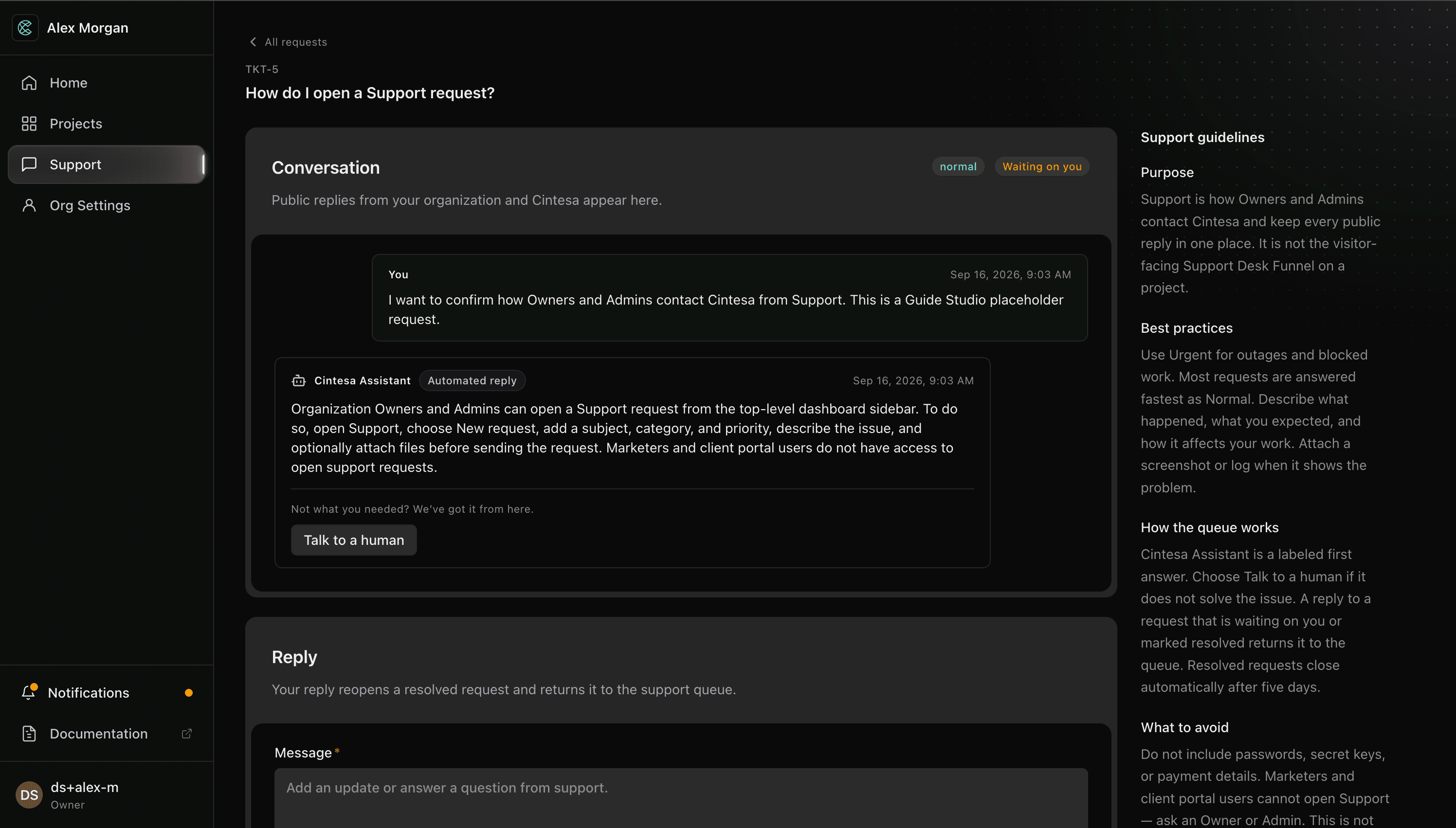
Open a ticket to read the public conversation and send a reply. When Cintesa posts a public reply, the requester sees a green attention dot on Support and, on a project page, on All projects. The Notifications inbox item names the TKT-… request and opens that thread, and the request shows New reply in the Support list. Opening the thread clears the requester’s unread state. The dot uses the same Cintesa green as other dashboard attention marks. It does not appear for your own messages or for staff-only notes.
- Cintesa Assistant is a clearly labeled automated first answer. When a matching Cintesa Guide article was retrieved, the reply includes a link to that article. Choose Talk to a human if it does not solve the issue.
- Cintesa support identifies a reply from a person.
- Staff-only notes never appear in your dashboard or attachment links.
A reply to a ticket that is waiting on you or marked resolved returns it to the support queue. Resolved tickets close automatically after five days. Closed tickets are locked; choose Open a new request if you still need help.
Support is for your organization’s relationship with Cintesa. It is not the visitor-facing Support Desk Funnel that a project can configure for its own website visitors.
© 2026 Cintesa. Guide text and screenshots are Cintesa product materials for personal and operator use. Do not scrape or republish them commercially without permission. Terms of Service · Privacy Policy.